How to add push notifications to your site — and why they stay silent on iPhone
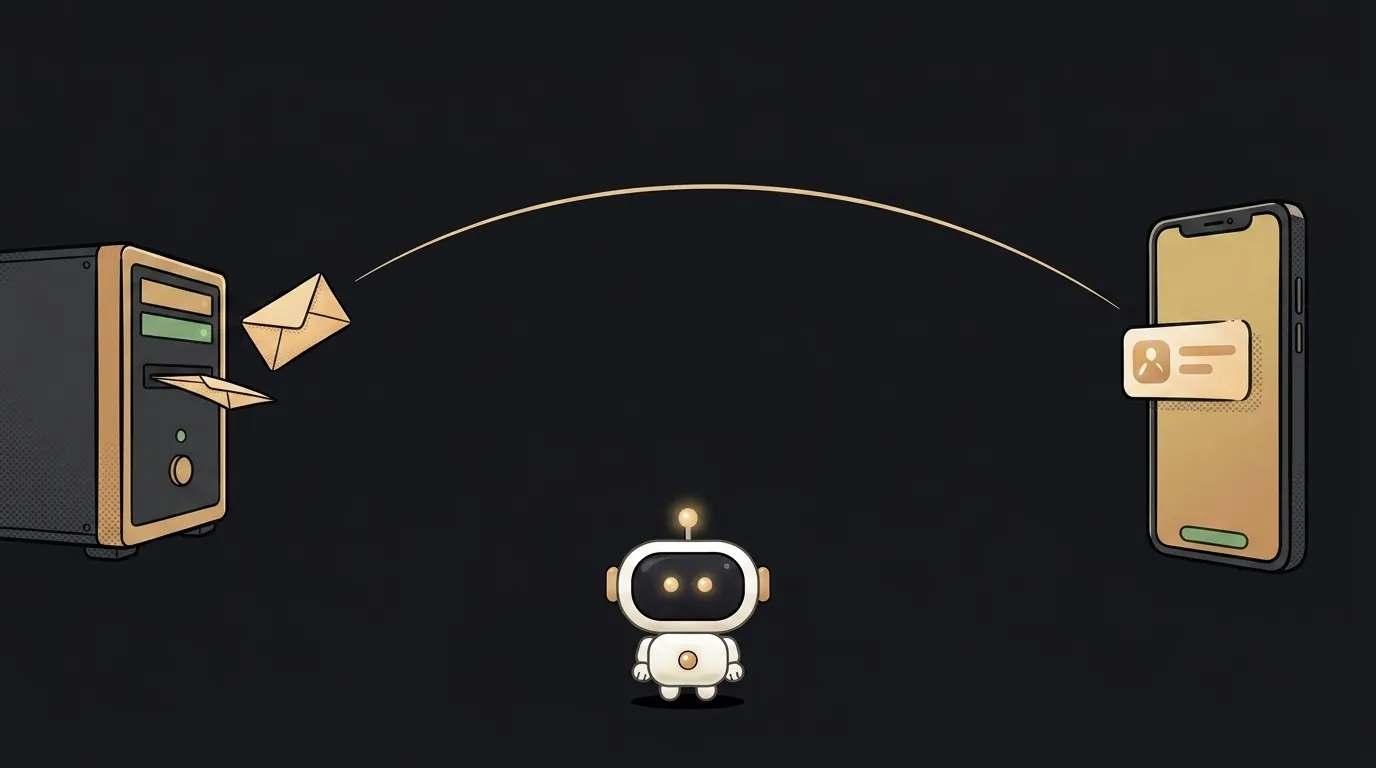
Web push is those cards that pop up even when your site is closed. It's free and takes an evening to build.
And here's the trap everybody hits first: on iPhone, web push does not work for a site open in a Safari tab. At all. It only comes alive after someone adds your site to their Home Screen. And it isn't a Safari thing — every browser on iOS runs on WebKit, so Chrome on an iPhone behaves exactly the same.
Keep that in mind, and let's build.
What you'll need
Three parts that have to line up:
- a manifest — so the site can be installed to the Home Screen;
- a service worker — the background script that catches the message when no tab is open;
- VAPID keys — the key pair your server uses to prove to the push service that it's really you.
Any server will do, even a free host: a push can't be sent from the browser, only from your side.
1. Add a manifest
Create manifest.json at the root of your site:
{
  "name": "My project",
  "short_name": "Project",
  "start_url": "/",
  "display": "standalone",
  "icons": [
    { "src": "/icon-192.png", "sizes": "192x192", "type": "image/png" },
    { "src": "/icon-512.png", "sizes": "512x512", "type": "image/png" }
  ]
}
And link it in your <head>:
<link rel="manifest" href="/manifest.json">
Without a manifest an iPhone won't let anyone install your site to the Home Screen — which means no push there.
2. Write the service worker
A file called sw.js at the root (root matters — otherwise it can't see the whole site):
self.addEventListener('push', (event) => {
  const data = event.data ? event.data.json() : {};
  event.waitUntil(
    self.registration.showNotification(data.title || 'Hi', {
      body: data.body || '',
      icon: '/icon-192.png',
    })
  );
});

self.addEventListener('notificationclick', (event) => {
  event.notification.close();
  event.waitUntil(clients.openWindow('/'));
});
The first handler shows the card, the second opens your site on click. Without the second one the notification just disappears and the user has nowhere to go.
3. Generate VAPID keys
One command:
npx web-push generate-vapid-keys --json
You get a pair: publicKey and privateKey. The public one goes to the browser, the private one stays on the server — put both in .env (see environment variables) and never commit the private key. Why that matters: how to store API keys safely.
4. Ask permission and subscribe
This runs on the page — and it must run on a user click, not on page load:
async function subscribe() {
  const reg = await navigator.serviceWorker.register('/sw.js');

  const permission = await Notification.requestPermission();
  if (permission !== 'granted') return;

  const sub = await reg.pushManager.subscribe({
    userVisibleOnly: true,
    applicationServerKey: 'YOUR_PUBLIC_VAPID_KEY',
  });

  await fetch('/api/save-subscription', {
    method: 'POST',
    headers: { 'Content-Type': 'application/json' },
    body: JSON.stringify(sub),
  });
}
Two details that fix half of all problems:
- Hang it on an "Enable notifications" button. Browsers suppress permission prompts that fire on their own at page load. And a user who hit "Block" won't be asked again — there's no second chance.
userVisibleOnly: trueis mandatory. Silent pushes aren't allowed on the web: every push must produce a visible card.
5. Save the subscription on the server
The frontend will send you an object like this:
{
  "endpoint": "https://fcm.googleapis.com/fcm/send/dK9...",
  "keys": { "p256dh": "BL7ELU24...", "auth": "juarI8x..." }
}
That's the address of one specific browser of one specific person, plus encryption keys. Store the whole thing — one row per device. One human on a phone and a laptop gives you two subscriptions, and that's fine.
Treat endpoint as a secret: whoever knows it can send notifications to your user.
6. Send a push from the server
Install the library: npm i web-push. Then it's a dozen lines:
const webpush = require('web-push');

webpush.setVapidDetails(
  'mailto:[email protected]',
  process.env.VAPID_PUBLIC_KEY,
  process.env.VAPID_PRIVATE_KEY
);

await webpush.sendNotification(
  subscription,
  JSON.stringify({ title: 'Done', body: 'Your report is ready' })
);
The library encrypts the payload with the keys from the subscription and knocks on the browser's push service.
One thing from practice: subscriptions go stale — someone uninstalls, clears data. Then sendNotification returns a 404 or 410. Catch that and delete the row, or your list of dead subscriptions grows forever.
What you get
You click the button on your site, allow notifications, close the tab. Trigger a send from the server — and a card pops over the system, like a real app. Corner of the screen on a laptop, notification shade on Android.
How to debug when nothing arrives
Open DevTools → Application → Service Workers. That panel shows the important things right away: whether your sw.js registered, whether it's active, whether an old version is still hanging around.
Three tricks that save you an evening:
- The Push button inside DevTools. It fires a test notification straight into your service worker with no server involved. If the card shows up that way but not from your server, the problem is in sending, not in the handler.
- The "Update on reload" checkbox. Service workers are cached aggressively, so you'll edit the file while the browser keeps running the old copy. This checkbox refreshes it on every reload.
- Check the permission by hand. Type
Notification.permissionin the console. Adeniedanswer means the user once hit "Block," and no code overrides that — the block has to be lifted in site settings manually.
iOS specifically: three conditions
For push to work on an iPhone, all of this must be true:
- iOS 16.4 or newer;
- your site has a manifest;
- the user tapped Share → "Add to Home Screen" and launched the site from that icon.
While the site lives in a tab, pushManager simply isn't available there, and no code gets around it. So on iPhone, show an honest hint: "To get notifications, add this site to your Home Screen." On recent iOS versions, Home Screen sites open as standalone apps by default, and from there it behaves like Android.
Also worth knowing: Safari 18.4 brought Declarative Web Push — a simplified flow that needs no service worker. But for compatibility with everything else, the world still runs on the setup above.
Why do pushes arrive on my laptop but not my phone?
Nine times out of ten it's iOS and an unmet condition 3: the site isn't on the Home Screen. Test on Android — if it arrives there, that's your answer.
Do I need HTTPS?
Yes. Service workers only run over HTTPS. The single exception is localhost during development.
How is push different from email?
Push is instant and short; email is long and stays in the inbox. For "your report is ready," push wins; for receipts and important documents, send an email from your app.
The AI Architect 2027 course: step by step from computer basics to your own app and first customers. 543 short lessons on your phone.
Read next

Why SSH still asks for a password when your key is set up — 3 causes

How to set up ~/.ssh/config — short server names instead of long commands

Why does SSH disconnect on its own (Broken pipe) — three causes and how to fix them

How to read command help (--help and man) — and find your version's flags in a minute

Why Ctrl+C doesn't stop a program — and how one except line causes it
