How to add voice input to your app — in 10 lines, with no API key
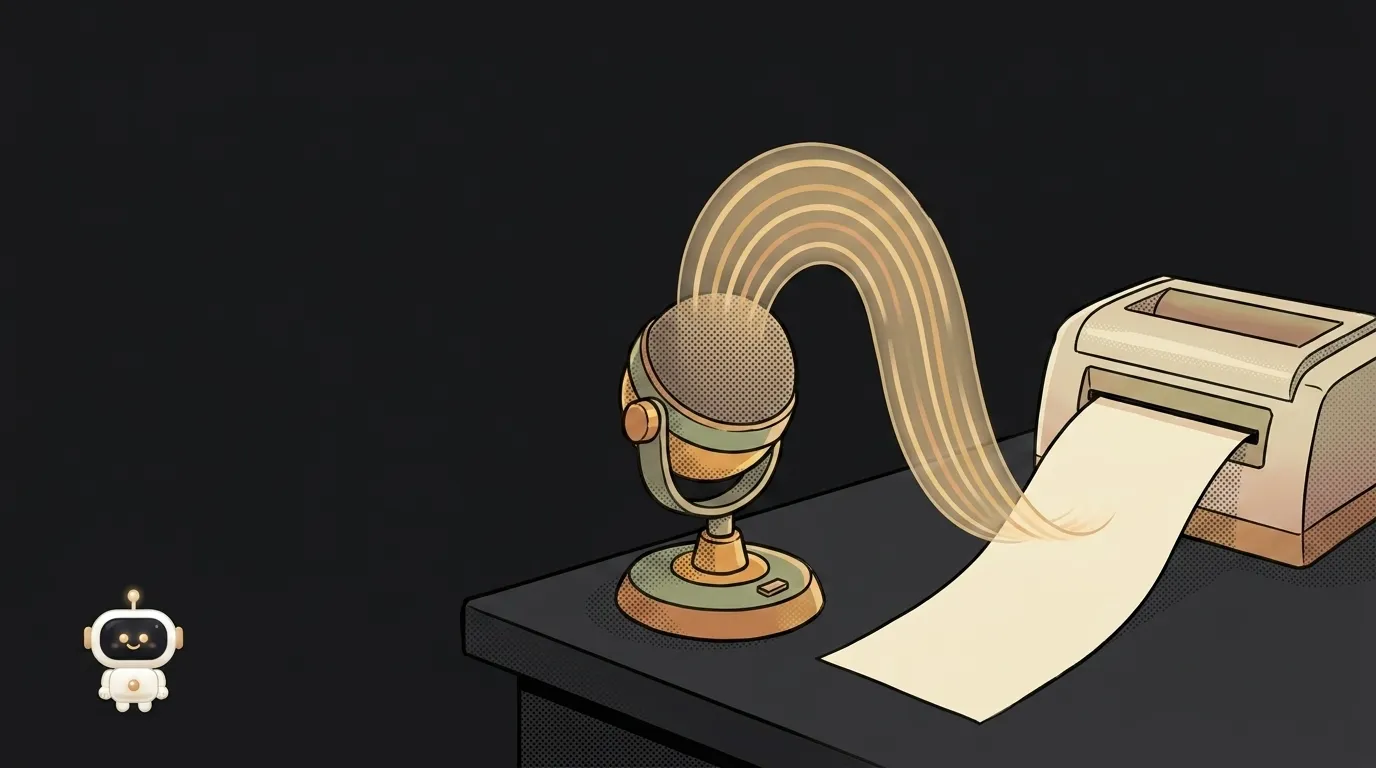
Here's the surprise: to make your site understand speech, you don't need an AI service at all. Speech recognition is built into the browser — no key, no bill, no server. Ten lines, and an input field fills itself by voice.
There is a catch, and we'll get to it. But start with what works today, for free.
1. Check the browser can do it
The API is called Web Speech, and it lives under two names — with the old prefix and without. Catch both on line one:
const SR = window.SpeechRecognition || window.webkitSpeechRecognition
if (!SR) {
  // not supported — hide the mic button
}
It works in Chrome, Edge, Safari (14.1 on macOS, 14.5 on iOS) and nearly everything Chromium-based. Not in Firefox. So only show the button to people it will work for: a silent microphone is more annoying than no microphone.
Second condition — the page must be served over HTTPS. Browsers won't hand out the mic on an insecure connection. Local localhost is the exception and works fine.
2. Set up the recognizer
const recognition = new SR()
recognition.lang = 'en-US'        // set the language explicitly
recognition.interimResults = true // show text as the person speaks
recognition.continuous = false    // stop after the first phrase
Three settings, three different behaviours:
lang— without it the page language is used, and speech in another language comes back as mush. Always set it.interimResults = true— text appears while the person is still talking. Without it the screen sits silent for seconds and feels broken.continuous = false— one-phrase mode. Exactly right for a search box; for dictating notes, settrue.
3. Take the result
recognition.onresult = (event) => {
  const last = event.results[event.results.length - 1]
  input.value = last[0].transcript
  if (last.isFinal) {
    // phrase complete — safe to submit
  }
}

button.onclick = () => recognition.start()
event.results holds the recognized chunks, and each carries an isFinal flag. While it's false you have a draft — the browser may still rewrite a word once it hears what follows. Once it's true, the phrase is settled.
That's the whole of voice input. Now the parts tutorials skip.
One trap will definitely catch you: the field resets on the next start. The browser only hands you the transcript of the current session, and the line input.value = ... wipes whatever was there before. Someone dictates a paragraph, pauses, continues — and the first paragraph is gone.
The cure is keeping settled text separate from the draft:
let final = ''
recognition.onresult = (event) => {
  let draft = ''
  for (const res of event.results) {
    if (res.isFinal) final += res[0].transcript
    else draft += res[0].transcript
  }
  input.value = final + draft
}
Final chunks accumulate in final, interim ones get redrawn every time. The text stops disappearing, and the person still sees words appear as they speak.
4. Handle the two refusals everyone hits
recognition.onerror = (e) => {
  if (e.error === 'not-allowed') // the user didn't grant mic access
  if (e.error === 'no-speech')   // silence, nothing to recognize
}
not-allowed is the common one: the person dismissed the permission prompt or blocked the mic earlier. Show a hint, not an empty field. no-speech arrives after a few seconds of silence and is a normal state, not a failure.
And a third thing the code doesn't show: the audio leaves the device. Chrome ships the recording to Google's cloud to recognize it. Fine for a search box, not fine for medical notes.
A recent detail: the spec now has a processLocally property. Set it to true and the browser must recognize on-device, with nothing sent out. You can check whether a language is available locally with SpeechRecognition.available() and pull down a language pack with SpeechRecognition.install(). Support isn't everywhere yet, so treat it as an "use it if it's there" branch, not a replacement.
5. When the browser isn't enough — bring in Whisper
Web Speech loses in three cases: you need Firefox, you need to transcribe an uploaded file, or you need better punctuation and accuracy.
Then the shape changes: record in the browser, send to your own server, and from there to the model.
const rec = new MediaRecorder(stream)
const chunks = []
rec.ondataavailable = (e) => chunks.push(e.data)
rec.onstop = async () => {
  const blob = new Blob(chunks, { type: 'audio/webm' })
  const fd = new FormData()
  fd.append('file', blob, 'audio.webm')
  await fetch('/api/transcribe', { method: 'POST', body: fd })
}
On the server the file goes to /v1/audio/transcriptions. The key lives only there — it must never reach the frontend, because a key in the browser leaks within a minute. For how this exchange works in general, see how to connect an API to your project.
Two limits people trip on: the file must be under 25 MB (that's weight, not length — mono 16 kHz fits hours) and you pay per minute of audio, not per request.
What you end up with
A mic button that fills a field by voice: press, say "find coffee near me", watch the text appear as you speak, and the form submits. On the free path that's zero keys, zero setup, zero bills. On the paid path you get any file transcribed and every browser covered.
Good rule: start with Web Speech, add Whisper only when you hit a wall. Half of projects never reach step two.
Does voice input work on phones?
Yes — iOS from Safari 14.5, Android in Chrome. Mind the mobile specifics though: the page must be on HTTPS, and start() has to be called in response to a tap. "Start listening on page load" will be blocked.
Why does recognition stop by itself after a few seconds?
That's the built-in silence timeout, not a bug. With continuous = false the browser ends the session after a phrase; with continuous = true it ends after a pause. For long dictation, restart recognition inside the onend handler so a pause doesn't cut the recording short.
The AI Architect 2027 course: step by step from computer basics to your own app and first customers. 543 short lessons on your phone.
Read next

Why SSH still asks for a password when your key is set up — 3 causes

How to set up ~/.ssh/config — short server names instead of long commands

Why does SSH disconnect on its own (Broken pipe) — three causes and how to fix them

How to read command help (--help and man) — and find your version's flags in a minute

Why Ctrl+C doesn't stop a program — and how one except line causes it
