Terminal keyboard shortcuts — 8 combos so you stop holding the arrow key
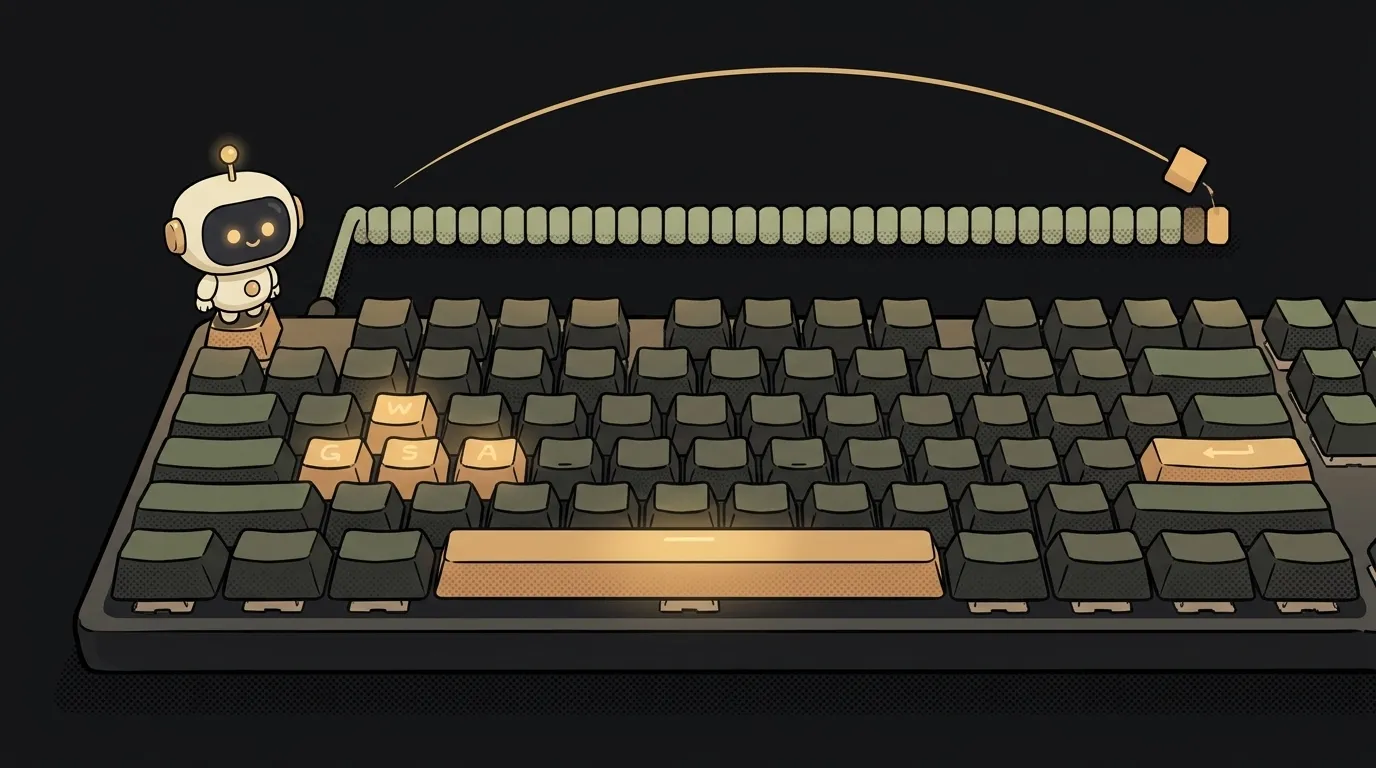
You typed a long command and spotted a typo at the very beginning. You hold the left arrow and wait for the cursor to crawl back. Then right again.
There's a faster way. The cursor jumps to the start of the line with one combo. And here's the surprise: the same keys work in any text field on a Mac — in Notes, in Safari's address bar, in Slack. They're older than the Mac: it's the Emacs editor layout that the terminal inherited through a library called readline.
The basics — Tab, the up arrow, Ctrl+C and clear — are in the article on terminal commands for beginners. This is the next level: eight combos that save time every day. They work in bash and zsh, on macOS and Linux.
1. Ctrl+R — search your history
You ran a long command three days ago. It's a hundred up-arrow presses away.
Press Ctrl+R and type a piece of it, say docker. The terminal shows the latest command containing that word. Ctrl+R again — an older one. Enter — run it. Ctrl+G — changed your mind, get out.
When it helps: every time you think "how did I run that?". The catch: history only covers commands from the same computer and the same shell.
2. Ctrl+A and Ctrl+E — start and end of the line
Ctrl+A moves the cursor to the start of the line. Ctrl+E — to the end. Easy to remember: A is the first letter of the alphabet, E is End.
When it helps: adding sudo in front of a command you've already typed. Ctrl+A, sudo , Enter.
The catch: in GNU screen, Ctrl+A is taken as the command key. There, press it twice.
3. Ctrl+W — delete a word
Ctrl+W deletes the word to the left of the cursor. Not a letter — the whole word up to a space.
When it helps: you got the file name wrong at the end of a command. One press instead of ten Backspaces.
The catch: in a browser the same combo closes the tab. Don't mix up your windows.
4. Ctrl+U and Ctrl+K — delete half a line
Ctrl+K deletes everything from the cursor to the end of the line. Ctrl+U — everything before the cursor (in bash) or the whole line (in zsh).
When it helps: you typed half a command and realized you need a different one. Ctrl+U — the line is clean.
5. Ctrl+Y — bring back what you deleted
Here's the secret behind items 3 and 4. Ctrl+W, Ctrl+U and Ctrl+K don't delete text — they cut it. It sits in a separate buffer. Ctrl+Y pastes it back.
When it helps: you typed a long command but need to run another one first. Ctrl+U — the line goes into the buffer. Run what you need. Ctrl+Y — your long command is back.
The catch: this buffer belongs to the terminal. The usual Cmd+V or Ctrl+Shift+V pastes something else — whatever you copied with the mouse.
6. Alt+. — the last argument of the previous command
You ran mkdir projects/new-app. Now you need cd into the same place. Type cd , press Alt+. — the terminal fills in projects/new-app. Press again — the argument from the command before that.
The catch: on a Mac, Option types special characters by default. Turn on "Use Option as Meta key" in your Terminal profile settings. Or press Esc, then the dot — that works everywhere.
7. Ctrl+Z — pause
You started npm run dev and remembered you need to commit. Ctrl+Z freezes the process and gives you the prompt back. Done with your thing — fg unfreezes it.
The catch: a frozen server doesn't respond. While it's paused, the site won't load in the browser. Don't confuse it with Ctrl+S — that freezes screen output, a common reason why your terminal looks frozen.
8. Ctrl+D — exit
On an empty line, Ctrl+D ends the session — same as exit. Handy for leaving a server after ssh. What that is, see the article on SSH. If the line has text, Ctrl+D just deletes the character under the cursor.
The catch: press Ctrl+D in a window with no nested sessions left, and the terminal itself closes.
How to make them stick
Don't learn all eight at once. Take one combo a week. Start with Ctrl+R — it pays off on day one. Then Ctrl+A and Ctrl+E, then the Ctrl+U and Ctrl+Y pair.
The terminal will show you the full list of what's already bound. In bash it's bind -P, in zsh it's bindkey. There are dozens of combos, but the same eight are the ones that end up living in your fingers.
Does this work in the VS Code and Cursor terminal?
Almost all of it — yes: it's the same shell. But the editor may grab some combos, like Ctrl+K. You can change that in its keybinding settings.
What about Windows?
PowerShell 7 has similar combos through the PSReadLine module, but the set differs. In Git Bash and WSL, everything on this list works.
Short story-lessons, an agent simulator and daily practice — in our mobile app. Free.
Read next
How to create an alias in the terminal — and keep it forever
Why your terminal is frozen and won't respond to keys — and what Ctrl+S has to do with it
How to watch a log file in real time — and why tail -f goes quiet overnight
Why your bash script breaks on spaces — and deletes the wrong file
How to replace text in many files at once — without breaking your .git folder