How to generate images with an API — 5 steps and the base64 trap
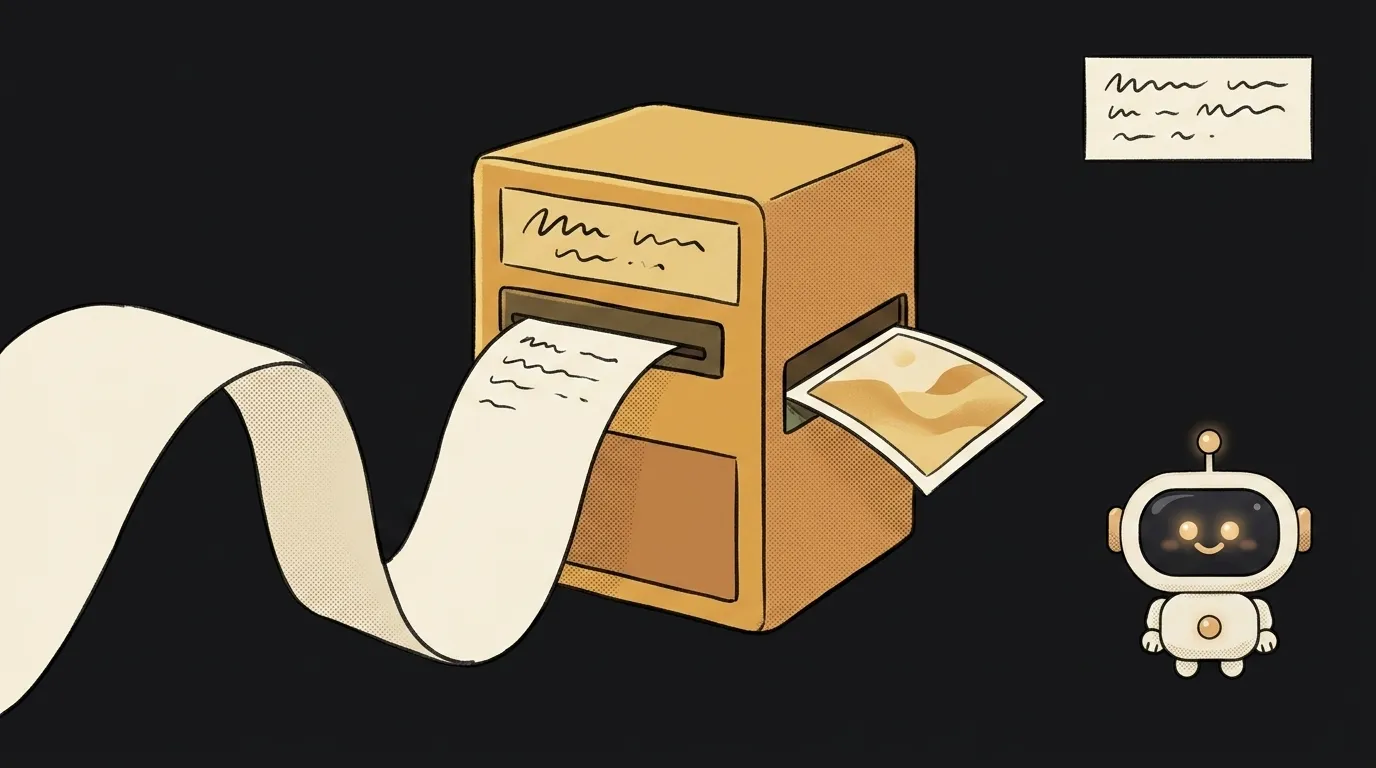
Everyone can generate a picture in a chat window. But the moment you need a hundred — article covers, avatars, product previews — hand work stops scaling. You need the API: one command, an image on disk, then a loop.
A heads-up about the trap that catches people on night one: the API doesn't return a link to an image. It returns the image itself, encoded as text inside the JSON. People look for a url, don't find one, and conclude the request failed. Here's the whole path, that moment included.
Step 1. Get a key, and hide it immediately
Create an API key in your chosen service's console and put it in an environment variable, not in code:
export GEMINI_API_KEY="your_key"
Two rules that will save you money. First: never commit the key — use a .env that's in .gitignore. Second, less obvious: don't call this API from the browser. A key in client code is visible to anyone through devtools, and image generation is a paid operation. Your server makes the request. Details in how to store keys safely.
Step 2. Send the first request
The minimal working call is a plain HTTP request — no SDK required:
curl -s -X POST \
  'https://generativelanguage.googleapis.com/v1beta/models/gemini-3.1-flash-image:generateContent' \
  -H "x-goog-api-key: $GEMINI_API_KEY" \
  -H 'Content-Type: application/json' \
  -d '{
    "contents": [{"parts": [{"text": "A ginger cat asleep on a stack of books, warm light, side view"}]}],
    "generationConfig": {"responseModalities": ["IMAGE"]}
  }' -o resp.json
Note responseModalities — that's how you say "I want an image, not text." OpenAI works the same way with its own endpoint, where the model is called gpt-image-2.
Open resp.json — and there's the step 3 surprise.
Step 3. Get the image out of the response
Inside you'll find no link, but a field called inlineData.data holding a few hundred thousand characters in a row. That's base64 — a way to write a binary file using ordinary letters so it can ride inside text JSON. It is not an image yet: you have to decode it back into bytes and write it to disk.
python3 -c "
import json, base64
r = json.load(open('resp.json'))
part = [p for p in r['candidates'][0]['content']['parts'] if 'inlineData' in p][0]
open('cat.png','wb').write(base64.b64decode(part['inlineData']['data']))
"
OpenAI names the field differently — data[0].b64_json — but the idea is identical: decode and write.
A side effect of base64 worth knowing up front: it inflates size by about a third. So the response weighs more than the picture, and storing images in a database this way is a bad idea. Put the file in storage and the link in the database.
Step 4. Turn parameters, not just words
Once the first image lands, it's tempting to improve results purely through prompt text. But some settings live in request parameters, and those work far more reliably:
- Aspect ratio. Asking for "a wide image" in words is a lottery. There's a parameter for it (
aspectRatioon Gemini,sizeon OpenAI). Set it explicitly. - Quality / model. There are fast cheap models and slow accurate ones. Use the first for drafts, the second for finals.
- Reference image. Nearly all models accept an input image alongside the text. This is the strongest lever there is: handing over a style sample and asking for "the same, different subject" beats describing a style in words.
Step 5. Do the maths before the loop
Images used to be priced per picture; increasingly they're priced in tokens, like text. In practice that means cost scales with resolution and quality rather than being flat.
Today's order of magnitude: a single image costs a few cents. Invisible one at a time, but a loop over a thousand covers is real money — and if your code retries on error, the bill multiplies quietly. Run ten, check actual spend in the console, then run a thousand.
What to do when there's no image in the response
Worth its own section, because on a long run this will happen: the response comes back 200, but there's no image inside.
Two reasons. Either a safety filter fired — models refuse to draw recognisable people, other people's characters, and anything resembling documents. Or the model decided to answer with text instead of a picture. Either way, the JSON holds text or a refusal reason where inlineData should be.
Naive code that reaches straight into the first list element crashes here with a cryptic index error — and you spend half an hour hunting a bug in your script when the problem is the prompt. So always check the image is actually there, and log the whole response when it isn't.
Second rule for loops: cap your retries. When a generation fails, the temptation is to retry in a loop — but every attempt is billed, and the refusal usually comes from the prompt, which won't fix itself. Two attempts, then skip and write it to the log.
What you end up with
One script that takes a list of descriptions and leaves you a folder of finished files. From there it bolts onto anything: covers for posts, avatars from usernames, product shots from titles. That's exactly how the illustrations on the articles you're reading get made.
Why does the same prompt give different images?
By design: there's randomness in the process, and a diffusion model starts from fresh noise each time. If you need repeatability, look for a seed parameter in the docs — same seed plus same prompt gets you close to the previous result.
Can I do this without a server?
If the project is tiny, generate ahead of time with a script from your laptop and ship the finished files with the app. You need a server exactly when a user orders an image in real time: then somebody has to hold the key and count the limits.
The AI Architect 2027 course: step by step from computer basics to your own app and first customers. 543 short lessons on your phone.
Read next

Why SSH still asks for a password when your key is set up — 3 causes

How to set up ~/.ssh/config — short server names instead of long commands

Why does SSH disconnect on its own (Broken pipe) — three causes and how to fix them

How to read command help (--help and man) — and find your version's flags in a minute

Why Ctrl+C doesn't stop a program — and how one except line causes it
