How to rename many files at once — without losing half of them
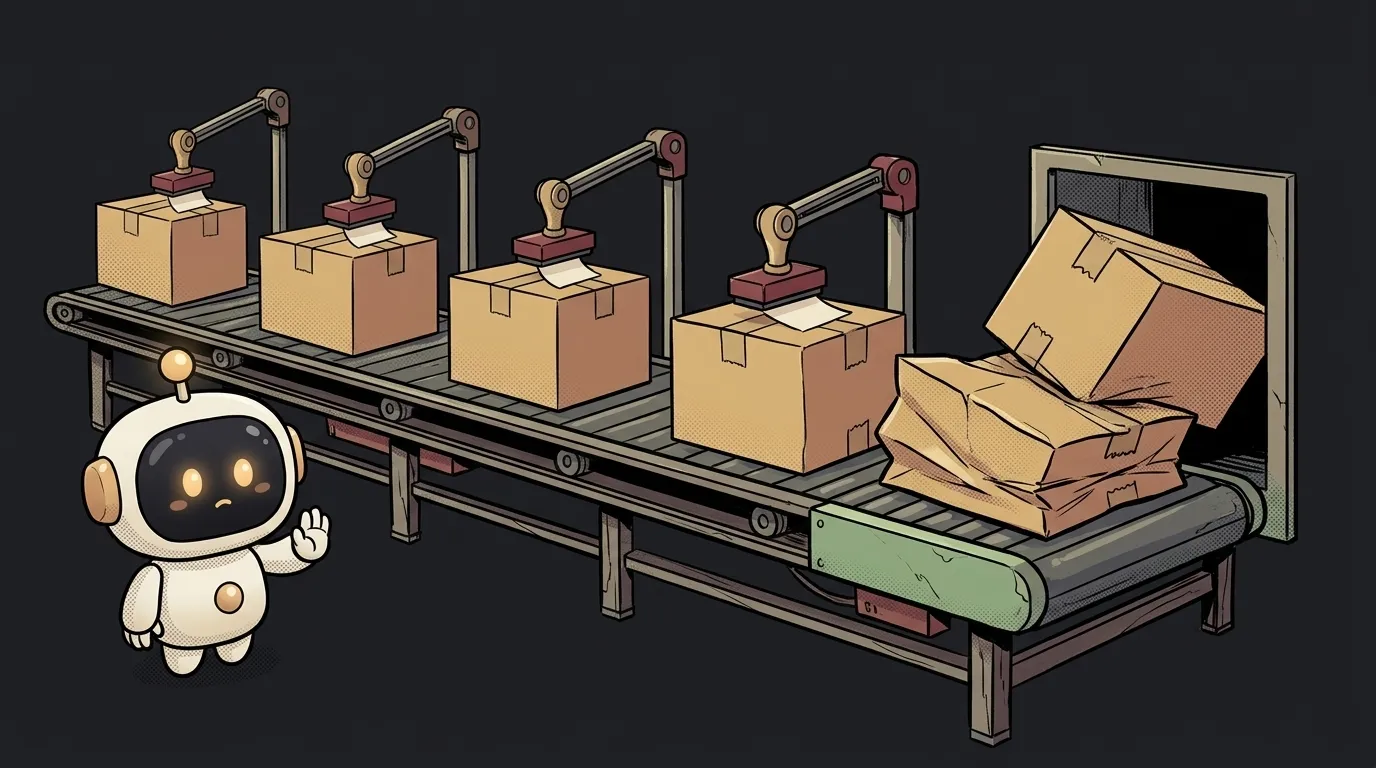
A folder had a.jpeg and a.jpg. I ran a plain loop to turn everything into .jpg. No errors. One file fewer.
mv doesn't ask permission. It silently wrote one file over the other. So renaming in bulk takes five steps, and the main one is seeing what will happen before it happens.
How to rename files in the terminal
Example: turn every .jpeg into .jpg. Open a terminal in the folder and follow along.
-
Make a copy. Five seconds against a ruined evening.
cp -r photos photos-backup cd photos -
See what the pattern matches.
ls *.jpegNothing? Stop. With no matches the loop receives the literal string
*.jpegand goes to work on that. -
Do a dry run.
echoin front ofmvprints the command instead of running it.for f in *.jpeg; do echo mv "$f" "${f%.jpeg}.jpg"; done${f%.jpeg}means "the name without the.jpegtail." Read the output with your eyes. A file with a space prints asmv my photo.jpeg my photo.jpg, and that's fine: the quotes are in the loop. -
Find conflicts. This is the step my example was missing.
for f in *.jpeg; do [ -e "${f%.jpeg}.jpg" ] && echo "CONFLICT: $f"; doneNo lines, move on. Lines, decide by hand which file to keep.
-
Run it for real, with protection. The
-nflag forbids overwriting.for f in *.jpeg; do mv -n "$f" "${f%.jpeg}.jpg"; done
What you get
Before:
a.jpeg a.jpg b.jpeg c d.jpeg
After:
a.jpeg a.jpg b.jpg c d.jpg
a.jpeg stayed put because -n left it alone. Nothing lost, and the conflict is visible right away. Anything still holding the old name is yours to sort out: ls *.jpeg.
How to number files in order
A common task: making photo-001.jpg, photo-002.jpg and so on. There's a catch. Look at the order the terminal gives you:
10.jpg
1.jpg
2.jpg
Comparison works like text, so 10 comes before 2. Hence the simple rule: leading zeros keep the order intact later. And sort the source files with -v, which understands numbers:
i=1
for f in $(ls -v *.jpg); do
  mv -n "$f" "$(printf 'photo-%03d.jpg' "$i")"
  i=$((i+1))
done
%03d means "a number three wide, padded with zeros." You get photo-001.jpg. One important caveat: this version splits names on spaces. It only works for files without spaces. Dry-run it with echo first.
How to do it on Windows
PowerShell has a ready command and a real preview, the -WhatIf flag:
Get-ChildItem *.jpeg | Rename-Item -NewName { $_.Name -replace '\.jpeg$', '.jpg' } -WhatIf
The output shows what will happen. Happy with it? Remove -WhatIf and run again. If a name is already taken, Rename-Item fails with Cannot create a file when that file already exists, and the file isn't lost. -WhatIf may not show that conflict in advance; it surfaces on the real run.
How to hand this to an AI
An assistant writes the loop in a second. But ask it to just "rename these" and it may run mv right away. So say how:
Folder photos, .jpeg files. Convert them to .jpg.
First only show the commands via echo and find any
name conflicts. Don't run anything until I say so.
Then use mv -n so no file gets overwritten.
That request gets you a plan you can read. If an agent works in your project, keep the folder in Git: undoing a bad rename is then one command.
Why not use the rename command?
It doesn't exist on macOS, and on Linux there are two different programs with different syntax. A tip from the internet may simply not fit. A mv loop works anywhere you have bash or zsh.
How do I rename files in nested folders?
A loop over *.jpeg only sees the current folder. For the whole tree, use find:
find . -name '*.jpeg' -exec sh -c 'mv -n "$1" "${1%.jpeg}.jpg"' _ {} \;
First replace mv -n with echo mv -n and read the list.
Can I do it without a terminal?
Yes, for simple cases. In Finder, select the files, right-click and choose "Rename." In Windows Explorer, select the files and press F2. But there's less preview and no conflict check.
How do I undo it if I already renamed?
If you have a copy or Git, restore from it. If not, a file overwritten by mv won't come back: it never goes to the trash. That's why step 1 isn't optional. The core folder commands are in terminal commands for beginners.
Short story-lessons, an agent simulator and daily practice — in our mobile app. Free.
Read next
No space left on device — why the disk is "full" when there's room left

Why hot reload doesn't work — the page won't update after you save
How to detect a touch screen in JavaScript and CSS — and why ontouchstart lies

Why your site works in Chrome but not Safari — and why Chrome on iPhone is Safari too

How to measure how long code takes in JavaScript — and why the first run always lies