What is a tar.gz file — and why a tar archive can be bigger than the files
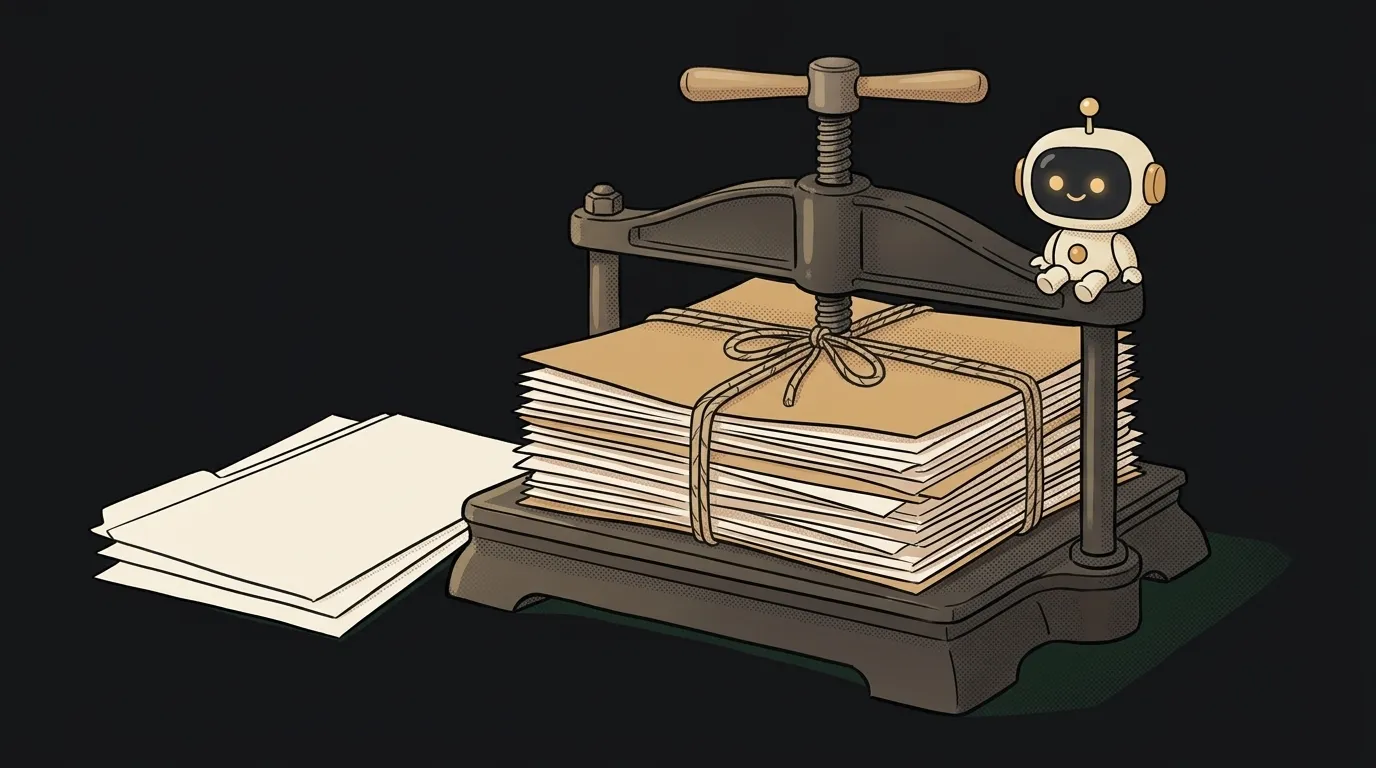
Look at what we did. We took a folder with two tiny files — 20 bytes total. Packed it into an archive with tar. The result: a 10,240-byte file. Five hundred times bigger than what's inside.
That's not a bug. tar simply isn't about compression. It does something else, and its partner does the squeezing. Let's see what .tar.gz is, why it has two extensions, and how to extract it without making a mess of your folder.
What tar.gz is, in plain words
.tar.gz is two layers of packing, like a parcel.
- tar puts many files and folders into one file. Like tying a stack of papers into a bundle. Nothing is compressed; it adds headers and padding on top. Hence our 10 KB: tar writes in 512-byte blocks and pads the archive out to 10 KB.
- gzip takes that bundle and compresses it. Like a vacuum bag. The same archive after gzip weighed 185 bytes for us.
Hence the name: .tar inside, .gz outside. The short form .tgz is the same thing. Other "bags" exist instead of gzip: .tar.xz and .tar.bz2 squeeze harder but slower. The whole thing is called a tarball.
Why two steps when zip exists? History: tar is older; it was made for tapes, back when compressing was a separate job. But there's a practical reason too: tar carefully keeps file permissions. We packed a script with the run permission — after extracting, it was still executable. That's why code for Linux almost always ships as tar.gz.
Where you'll run into it
More often than you'd think:
- Source code on GitHub. Every release page has a "Source code (tar.gz)" next to the zip.
- npm packages. Every package in the registry is a
.tgz. When your package manager installs a dependency, it downloads and unpacks a tarball.npm packbuilds one from your own project. - Server software and backups: "download
app-linux-x64.tar.gzand extract it".
How to extract — one command
tar -xf archive.tar.gz
Two letters: x — extract, f — from this file. Modern tar figures out the compression on its own, so -xf works for .gz and .xz alike. Older guides say tar -xzvf — there z says "this is gzip" explicitly, and v prints file names. How to read glued letters like that, we covered in what is a command-line flag.
To pack it back:
tar -czf project.tar.gz project-folder
Here c is create, z is compress with gzip, f is the archive name. One important detail: put f last, since the file name comes right after it. We tried tar -cfz x.tar folder — tar created an archive named z and complained about x.tar.
Peek inside first
Here's the trap everyone hits. Some archives contain a folder: project/file1, project/file2. Others have loose files right at the top. Extract one of those into Downloads, and hundreds of files land mixed in with yours. People call that a tar bomb.
So before extracting, look at the list:
tar -tf archive.tar.gz | head
t lists the contents without extracting anything. If every line starts with one folder, go ahead. If not, make a folder first and extract into it:
mkdir app && tar -xf archive.tar.gz -C app
-C means "extract into this folder". And if, the other way round, an extra wrapper folder gets in the way, add --strip-components=1. It cuts off the first level of folders, and the contents land straight in app.
And if you downloaded the archive, the author often publishes its checksum next to it. Compare it before extracting.
Pack a project without the junk
Want to send a project to a friend or upload it to a server? Don't drag along what's easy to rebuild:
tar -czf project.tar.gz --exclude=node_modules --exclude=.git project
We checked: only your files went into the archive, while the dependency folder and git history stayed home. The size difference can be hundreds of times — node_modules easily outweighs all your code. The recipient restores dependencies with a single npm install.
FAQ
How do I open a tar.gz on Windows or Mac?
On a Mac, double-click it in Finder. Windows 10 and 11 have a built-in tar command in the terminal — the same tar -xf. A free archiver like 7-Zip works too.
What's the difference between tar.gz and zip?
Zip compresses each file separately, so pulling out one file is easy. Tar.gz compresses the whole bundle at once: it's usually a bit smaller, and file permissions survive.
Why does tar say not in gzip format?
Most likely the download failed and the file is actually an HTML error page. Check its size: a few kilobytes instead of megabytes is a dead giveaway.
The AI Architect 2027 course: step by step from computer basics to your own app and first customers. 543 short lessons on your phone.
Read next
Ed25519 vs RSA — which SSH key to choose in 2026
What is sudo — and why it asks for your password, not the admin's
What is a command-line flag — and why git commit -ma breaks but -am works
scp or rsync — and why rsync sent 141 bytes instead of two megabytes the second time
What is stdin — and why a loop over a server list only handles the first one