How to add biometric login — without making it decorative
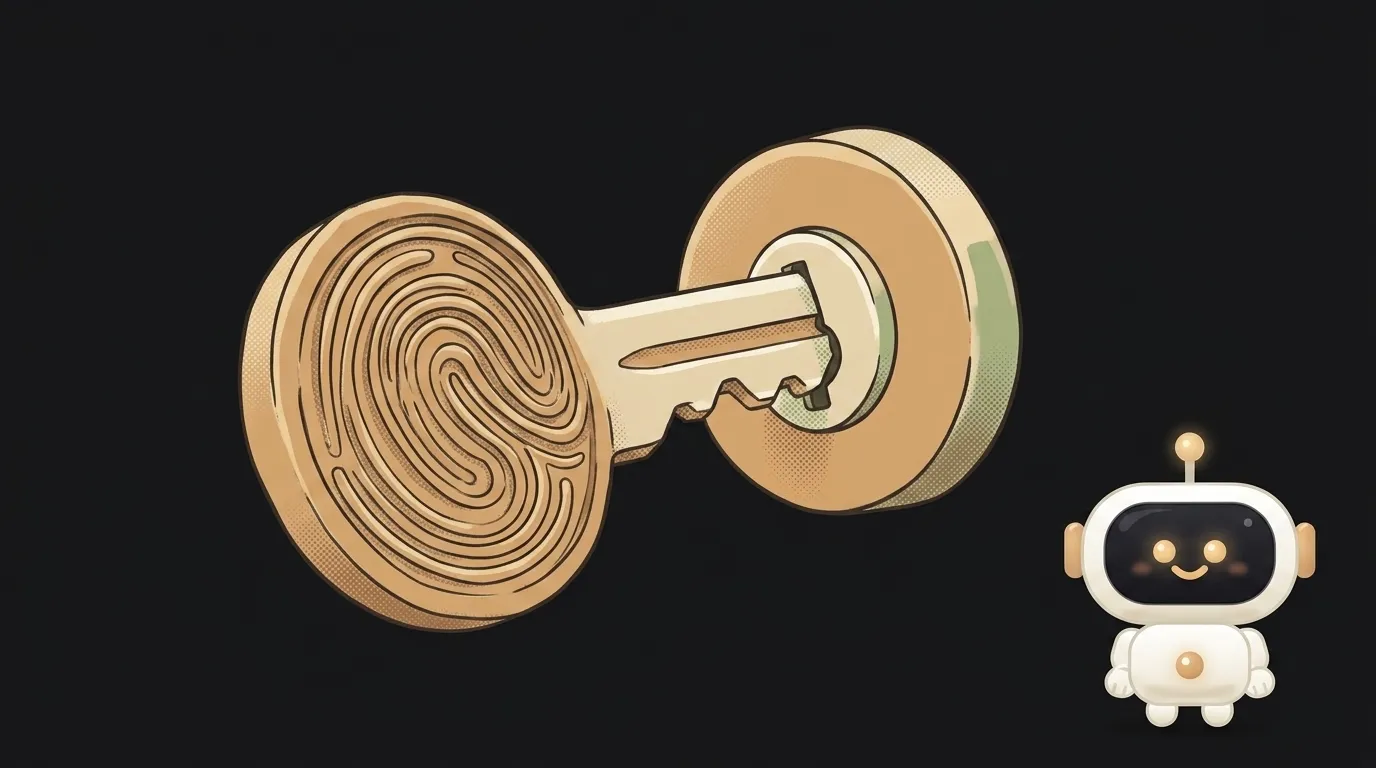
The most common mistake in biometric login looks innocent:
if (success) {
  openTheApp()
}
The fingerprint sheet was shown, a checkmark came back, the user got in. Trouble is, there's zero protection here. The token was sitting in storage unprotected the whole time, and it can be taken around that screen — by simply reading the app's files.
Biometrics work differently: they don't answer "this is you", they allow a key to be used. Let's do it properly.
What you'll end up with
The user signs in with a login once. After that the app opens with a fingerprint or a face in half a second. The token is physically unreachable until biometrics pass.
1. Don't replace the login — build on top of it
Biometrics are not a way to authenticate with your server. The server knows nothing about your finger, and it shouldn't.
So the scheme is:
- First sign-in the normal way: email, password, code or sign in with Google. Standing that up in 20 minutes is covered in how to add login to your app.
- The server returns a refresh token.
- You store it — and this is where biometrics begin.
2. Store the token with an "only after biometrics" condition
The key step. The token goes into secure storage, but not plainly — with an access policy attached.
- iOS. You create a
SecAccessControland save the Keychain item with it. ThebiometryCurrentSetflag has a useful side effect: if a new fingerprint or face is added to the phone, the item stops opening and returnserrSecAuthFailed. Someone enrolled their finger on an unlocked phone — they still don't get the secret. - Android. You generate a Keystore key with
setUserAuthenticationRequired(true). After that the key physically can't be used without the owner confirming.
The token is encrypted with that key. The file can be stolen; decrypting it can't.
3. Show the prompt so that it actually means something
On Android call BiometricPrompt with a CryptoObject — pass in a Cipher initialised with your key:
biometricPrompt.authenticate(promptInfo, BiometricPrompt.CryptoObject(cipher))
The difference is fundamental. Without a CryptoObject you get "the user touched the sensor" — the very boolean from the top of this article. With it you get a working cipher that decrypts the token. There's nothing to bypass: without successful biometrics, decryption doesn't exist.
For money-related operations Android recommends requiring Class 3 (strong) biometrics and going through a CryptoObject.
On iOS a separate call is often unnecessary: the system raises Face ID by itself when you try to read the protected Keychain item.
4. Handle the refusals — there are more than you'd think
There are about five ways "biometrics didn't work", and you'll meet all of them on day one:
- there's no sensor at all (an old or cheap device);
- there's a sensor, but nothing is enrolled;
- the user tapped Cancel;
- three failed attempts in a row and the system locks out temporarily;
- the enrolled biometrics changed and the key became unavailable.
Rule: biometrics are always a shortcut, never the only door. Keep the regular login for each of these. Handle the last one on its own: the secret didn't vanish by mistake, so ask the user to sign in again honestly.
5. Test on a real device
The simulator lies here. It will happily fake a plain LocalAuthentication check, but biometric access to the Keychain doesn't work in the simulator. Precisely the part you built all this for stays untested.
Five minutes on a real phone surfaces three bugs at once.
6. Ask at the right moment
The technical part is done; the other half of success is when you offer to turn biometrics on.
A bad moment is first launch. The person hasn't figured out what your app is yet, and it's already asking for a finger. A refusal here is expensive: the system prompt is shown once, after which you have to send people into phone settings.
A good moment is right after the first successful sign-in. The value is obvious: "so you don't type this every time." And always keep a toggle in the app's settings: some declined by accident, some change their mind a week later.
A small thing with a big effect: say in the prompt what it's for, instead of "Confirm your identity". "Open KODiQ without typing your password" is clearer and more honest.
FAQ
Does the app receive my face or fingerprint?
No. Biometric data never leaves the secure chip. The app only gets the result of the check — and, in a correct setup, access to the key.
Is this a password replacement or a second factor?
Formally it's a convenient way to unlock a local secret. A real second factor for the account is 2FA on the service side.
What if the user switches phones?
Nothing special: the new device has no key, so they get a normal login and a fresh binding. That's the intent — the secret doesn't travel with a backup.
The AI Architect 2027 course: step by step from computer basics to your own app and first customers. 543 short lessons on your phone.
Read next

Why SSH still asks for a password when your key is set up — 3 causes

How to set up ~/.ssh/config — short server names instead of long commands

Why does SSH disconnect on its own (Broken pipe) — three causes and how to fix them

How to read command help (--help and man) — and find your version's flags in a minute

Why Ctrl+C doesn't stop a program — and how one except line causes it
