How to make a PWA — turn your site into an app without app stores
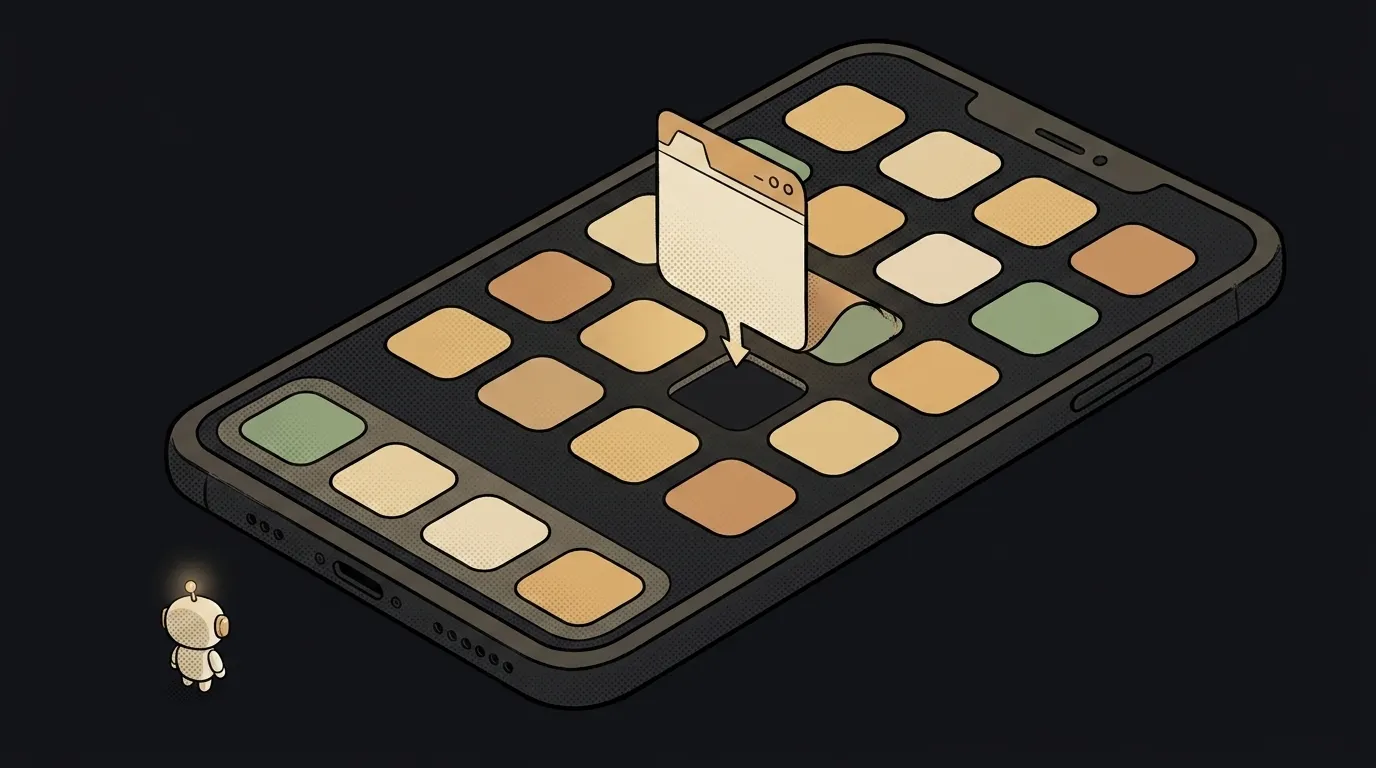
Here's something you can do in an evening: take an ordinary website and teach it to install on a phone. Icon on the home screen, launches without an address bar, feels like a real app. No App Store, no Google Play, no review queue, no 30% cut.
And here's what surprises most people: you don't need a service worker for this. It isn't in Chromium's list of installability requirements — that list is just the manifest and the icons. A service worker handles offline, not the icon. Half the people who try PWAs bail at "I need to learn service workers," when the first working result takes exactly one JSON file.
Let's build it step by step.
1. Create the manifest
In your site root, create manifest.json. This is the app's passport — the browser reads it to figure out how to present your site once installed.
{
  "name": "Water Tracker",
  "short_name": "Water",
  "start_url": "/",
  "display": "standalone",
  "background_color": "#141416",
  "theme_color": "#D4A373",
  "icons": [
    { "src": "/icon-192.png", "sizes": "192x192", "type": "image/png" },
    { "src": "/icon-512.png", "sizes": "512x512", "type": "image/png" }
  ]
}
What Chromium browsers require for installability:
nameorshort_name— the label under the icon;icons— must include a 192×192 and a 512×512 icon;start_url— what opens on launch;display— window mode.standalonedrops the address bar so the app stops looking like a tab;prefer_related_applications— eitherfalseor absent entirely.
Miss one of the icons and no install prompt appears. That's the single most common cause of "I did everything and there's no button."
2. Link the manifest from your pages
One line in the <head> of every page:
<link rel="manifest" href="/manifest.json" />
Check the path: the file has to actually be served at that URL. Open yoursite.com/manifest.json in a browser — you should see JSON, not a 404.
3. Draw two icons
You need two PNGs: 192×192 and 512×512 pixels. Not SVG, not JPG — PNG at those sizes.
Don't overthink it: a square in your brand colour with a large symbol or letter in the middle. Fine detail is invisible at 192 pixels anyway.
Put the files wherever the manifest's src points.
4. Check HTTPS
PWAs only work over a secure connection — HTTPS is mandatory. Without it there's no install and no service worker.
Good news: localhost counts as a secure context. You can test everything locally with no certificates, and production hosting usually has HTTPS on by default — we covered deploying separately.
5. Test the install
Open the site in Chrome on a phone, or desktop Chrome. An "Install app" option appears in the address bar (desktop) or the browser menu (mobile).
If it doesn't — open DevTools → Application tab → Manifest. The browser spells out exactly what's missing.
At this point you already have a working PWA. Everything below is about offline.
6. Add a service worker for offline
A service worker is a script that lives between your site and the network and can answer requests from cache. That's what makes it work without internet.
sw.js in the root:
const CACHE = "app-v1";
const ASSETS = ["/", "/index.html", "/style.css", "/app.js"];

self.addEventListener("install", (e) => {
  e.waitUntil(caches.open(CACHE).then((c) => c.addAll(ASSETS)));
});

self.addEventListener("fetch", (e) => {
  e.respondWith(caches.match(e.request).then((r) => r || fetch(e.request)));
});
And the registration, in your page's main script:
if ("serviceWorker" in navigator) {
  navigator.serviceWorker.register("/sw.js");
}
The logic is simple: on install, stash the files in cache; on every request, check the cache first and only then hit the network.
One detail that saves you an hour of debugging: bump app-v1 to app-v2 every time you change those files. Otherwise the browser keeps serving the old version from cache and you'll conclude the deploy failed.
What you get
Open the site on a phone → "Add to Home Screen" → an icon appears on the desktop. Tap it and the app opens full-screen, no address bar, no tabs. In airplane mode the cached pages still open.
From the outside it's indistinguishable from a native app. The difference is that an update ships in seconds via deploy instead of sitting in review for three days.
Where a PWA won't install
Worth knowing before you promise anything — support is uneven:
- Android — installs everywhere: Chrome, Firefox, Edge, Opera, Samsung Internet.
- iOS 16.4 and later — via the Share menu in Safari, Chrome, Edge, Firefox and Orion. On iOS 16.3 and earlier — Safari only.
- Desktop Chromium browsers — install on all supported operating systems.
- Safari on macOS Sonoma (Safari 17) and later — "Add to Dock," which works even without a manifest.
- Firefox on desktop — doesn't install PWAs at all. A manifest won't help.
So an "install our app" banner on desktop shouldn't be shown to everyone.
Do I need a framework to build a PWA?
No. A PWA isn't a technology or a library — it's a set of browser capabilities. A static three-file site becomes a PWA exactly the same way a React app does. Frameworks just automate generating the manifest and worker.
Can I publish a PWA to the app stores?
Google Play — yes, via a wrapper (Trusted Web Activity); that's an established practice. The App Store won't take a bare PWA: Apple requires a native wrapper. If the stores are non-negotiable, decide honestly first whether you need an app or a site is enough. And separately check that the site looks right on mobile: a PWA doesn't fix your layout, it only wraps it.
The AI Architect 2027 course: step by step from computer basics to your own app and first customers. 543 short lessons on your phone.
Read next

Why SSH still asks for a password when your key is set up — 3 causes

How to set up ~/.ssh/config — short server names instead of long commands

Why does SSH disconnect on its own (Broken pipe) — three causes and how to fix them

How to read command help (--help and man) — and find your version's flags in a minute

Why Ctrl+C doesn't stop a program — and how one except line causes it
