How to stream AI responses — so text types out letter by letter instead of hanging
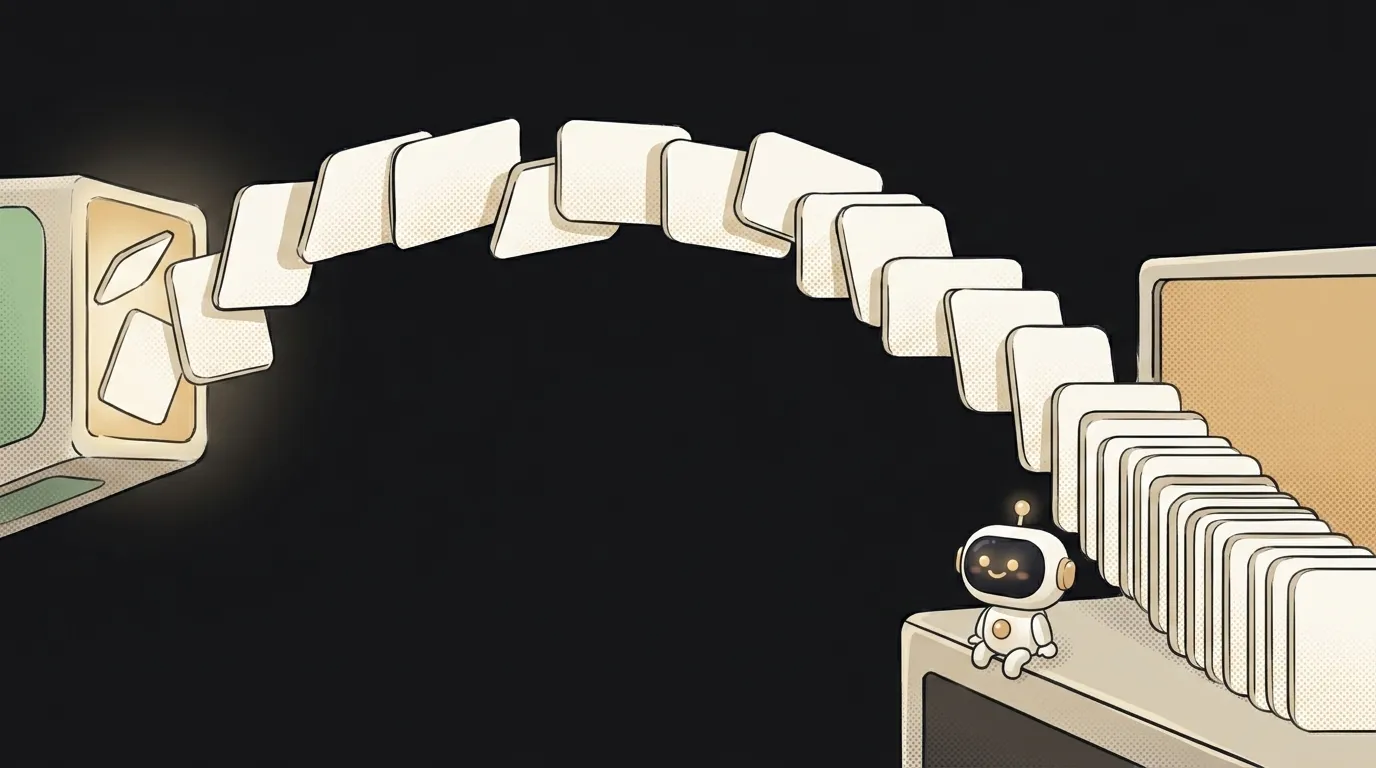
Know why ChatGPT's answer "types out" word by word instead of appearing all at once? It's not decoration. The model generates text in little pieces, and if you wait for the whole answer to assemble, the user stares at a blank screen for five seconds thinking it froze. Streaming shows the words as they're born. It feels instant, even though the full answer takes the same time. Let's wire it into your chatbot, step by step.
What streaming is and why you want it
A normal request works like this: ask → wait for the whole answer → get it as a wall. Streaming works differently: ask → the answer flows to you in chunks, and you paint them on screen on the fly. The model prints one chunk at a time either way — streaming just stops hiding that and hands it straight to the user.
How to do it — step by step
We'll use "JavaScript server + browser." In other languages it's the same, only the syntax changes.
- Turn streaming on in the request. In every popular API it's one flag:
const stream = await openai.chat.completions.create({
  model: "gpt-5.5",
  messages: [{ role: "user", content: prompt }],
  stream: true,          // ← this line turns streaming on
});
- Read the answer in chunks. Now the model returns not one object but a stream. You pull the text out piece by piece:
for await (const chunk of stream) {
  const piece = chunk.choices[0]?.delta?.content || "";
  // piece is the next bit of text, e.g. "hel" or "lo"
}
- Forward the chunks to the browser. You need a channel between server and page that can send data bit by bit. The classic is Server-Sent Events (SSE): set a special header and write lines in the
data: ...format:
res.setHeader("Content-Type", "text/event-stream");
for await (const chunk of stream) {
  const piece = chunk.choices[0]?.delta?.content || "";
  res.write(`data: ${JSON.stringify(piece)}\n\n`);
}
res.end();
- Paint the text on screen. The browser listens to the channel and appends each chunk to the end:
const es = new EventSource("/api/chat");
es.onmessage = (e) => {
  box.textContent += JSON.parse(e.data);   // append, letter by letter
};
The result
The answer starts appearing almost immediately — the first words show in a fraction of a second, not after five. The full text takes exactly as long, but the user doesn't feel it: they're already reading. This trick is what makes a chatbot feel "alive" instead of "hung."
Common gotchas
EventSourceonly does GET. But you often want to send the prompt via POST. Then use plainfetchinstead ofEventSourceand read its body as a stream (response.body.getReader()) — same principle, different channel.- Proxies and buffering. Some servers and CDNs hoard the answer and hand it over whole — streaming "disappears." Make sure response buffering is off along the whole path.
- Dropped connection. The user closed the tab — close the stream on the server too, or you'll pay for generation into the void.
Q: Does streaming speed up the model itself?
No. The full answer arrives in the same time — streaming doesn't change the model's speed. It changes the feel: the first word on screen in a fraction of a second instead of waiting before emptiness. It's about perception, not real speed — but for the user the difference is huge.
Q: Does this work with any model?
With almost every modern API — the stream: true flag (or its equivalent) is supported by OpenAI, Anthropic, Google, and most local servers. If a model can't stream, you simply get the whole answer at the end — the code won't break, there just won't be the typing effect.
Short story-lessons, an agent simulator and daily practice — in our mobile app. Free.
Read next
Why you get NaN in JavaScript — 3 causes and how to find where it came from
How to convert a string to a number in JavaScript — without tripping on a comma
Why my loop never stops — and the tab freezes solid
Why my array is empty — and why there's no error
Why your AI agent edits the wrong file — three causes and how to check each