Why git push is rejected — 3 causes and how to fix each
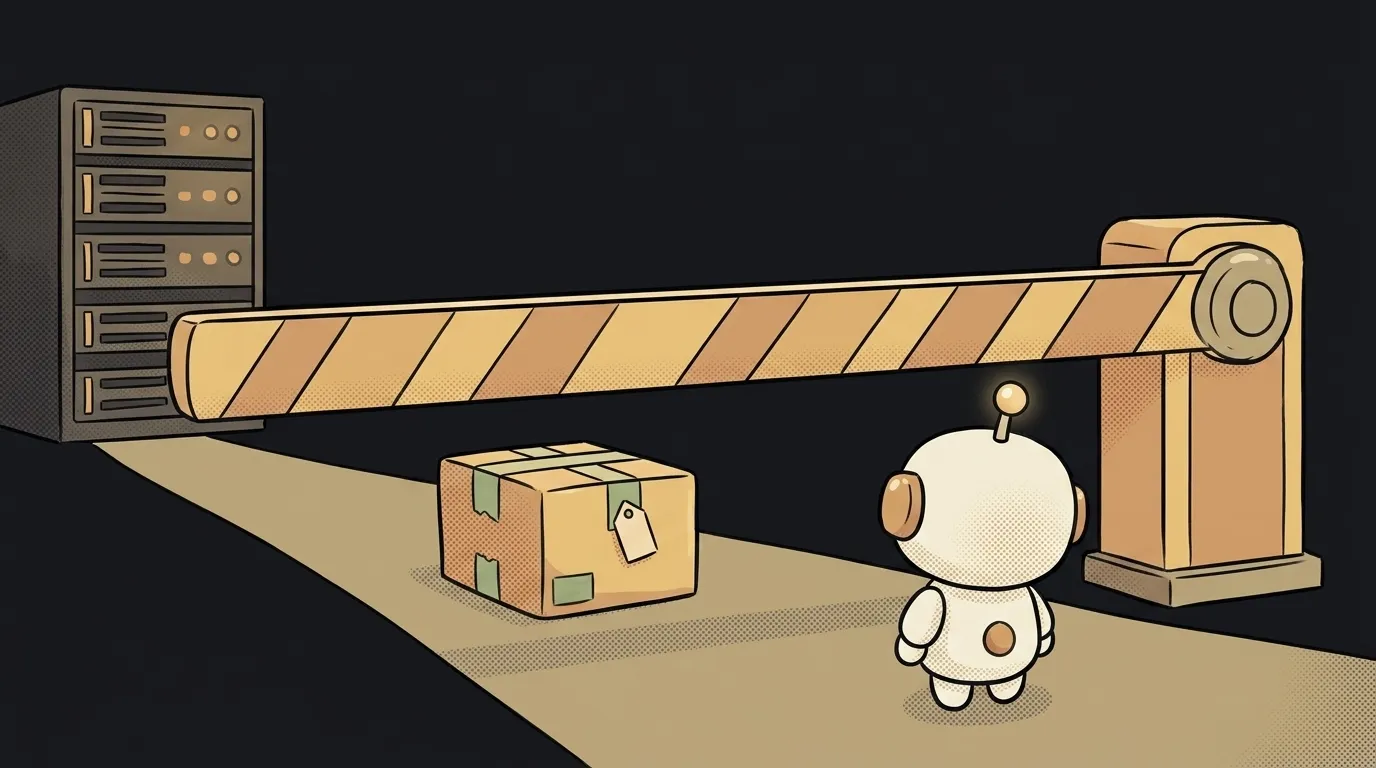
You type git push and get back a red ! [rejected] main -> main (fetch first). First thought: it broke, all is lost. Relax.
Here's the thing — rejected isn't a break, it's git protecting you. It refuses to push because it's afraid of overwriting someone's work or doing something irreversible. Almost always the cause is one of the three below. Let's go through them in order, from most common.
Cause 1. The server moved ahead of you (most common)
You made a commit, but the server already has a commit you don't have. Maybe you pushed from another computer. Maybe a teammate got there first. Git sees that your histories have diverged and won't blindly overwrite what's on the server.
The message spells this out with fetch first or non-fast-forward.
How to check. Run git status — you'll see something like "your branch and 'origin/main' have diverged". That means it's exactly this.
How to fix. First pull the other changes from the server and weave yours on top:
git pull --rebase
git push
--rebase neatly stacks your commits on top of the server's, without an extra "merge." If git reports a conflict — two people edited the same chunk — it shows you exactly where, you pick the right version by hand and continue. That's a normal part of using git as a beginner, not an error.
Cause 2. Wrong branch or no permission
The second common case: you're pushing to the wrong place, or you're simply not allowed.
- Protected branch. In many repos
mainis closed to direct pushes — you can only change it through a pull request. Then a push tomainbounces, but a push to your own branch goes through. - Someone else's repo. You cloned someone's project but you don't have write rights. The push returns an access error (403 / permission denied).
How to check. Look at where you're aiming: git remote -v (the right repo) and git branch (the right branch).
How to fix. Push to your own branch and open a pull request:
git switch -c my-branch
git push -u origin my-branch
If it's your repo but you have no access — it's almost always an auth issue: an expired token or key. Then it's fixed by refreshing your GitHub access, not by git itself.
Cause 3. A file that's too big
Rarer, but it stings. GitHub won't accept files bigger than 100 MB — a push with such a file bounces, even if everything else is perfect. Usually it's an accidentally committed video, archive, or build folder.
How to check. The error text names the file and its size directly ("this exceeds GitHub's file size limit of 100 MB").
How to fix. Remove the heavy file from history and add it to .gitignore so it doesn't come back:
git rm --cached huge-file.zip
echo "huge-file.zip" >> .gitignore
git commit -m "remove large file"
git push
If the big file genuinely belongs in the repo (a design mockup, say) — there's a separate mechanism for that, Git LFS. But most often such a file just slipped in by accident and needs to be removed.
Why can't I just force the push?
You can — git push --force overwrites the server's history with yours. But it's dangerous: you'll erase other people's commits you never had, and getting them back is hard. For a beginner the rule is simple: pull first, and use --force only when you're certain what you're overwriting and why.
What's the difference between fetch, pull and push?
Short version: push — send your commits to the server. fetch — download others', but don't weave them in yet. pull — that's fetch plus weaving them in right away. When git asks to fetch first, it means: "get the other stuff, sort it out, then send yours." More commands are in the git cheat sheet.
Short story-lessons, an agent simulator and daily practice — in our mobile app. Free.
Read next
Why you get NaN in JavaScript — 3 causes and how to find where it came from
How to convert a string to a number in JavaScript — without tripping on a comma
Why my loop never stops — and the tab freezes solid
Why my array is empty — and why there's no error
Why your AI agent edits the wrong file — three causes and how to check each