Git commands every beginner needs — 7 that cover 90% of the work
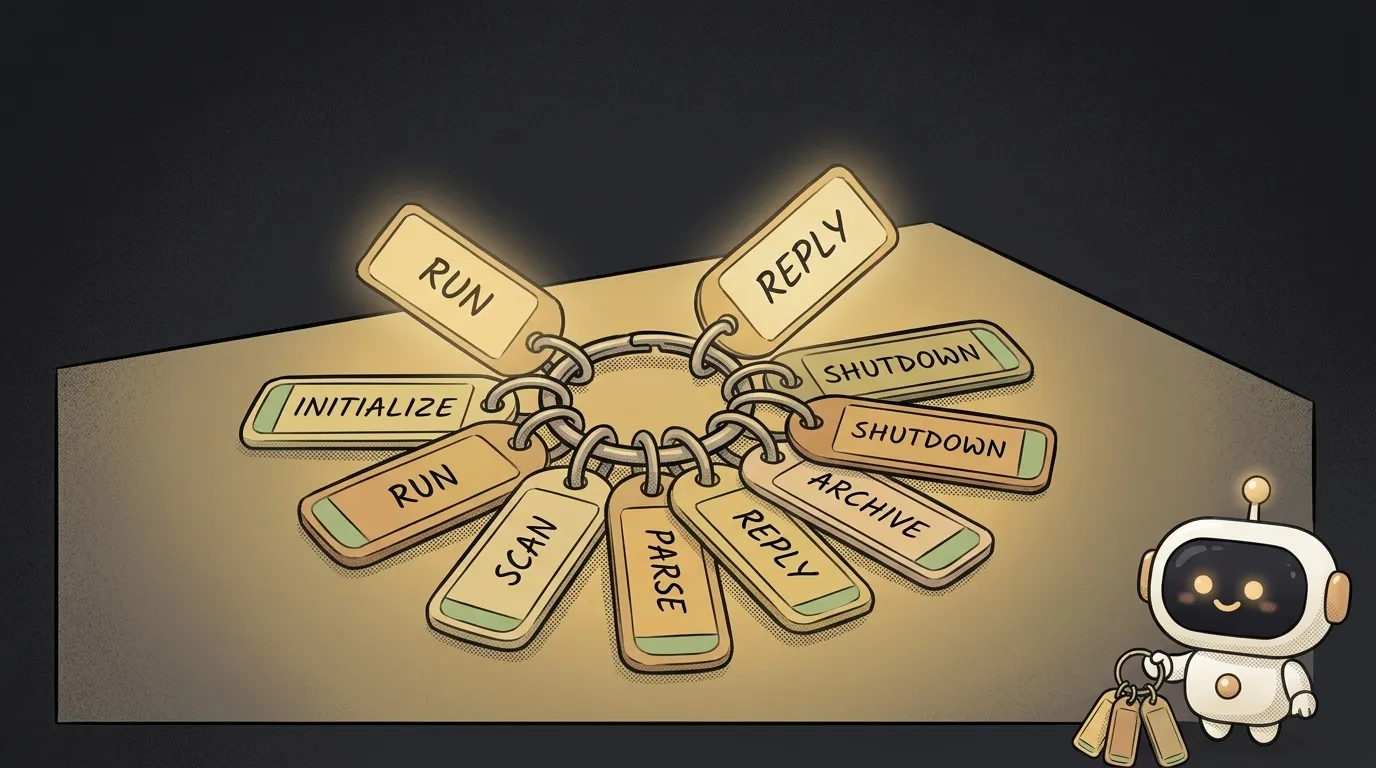
Git has hundreds of commands, and that alone makes a beginner want to close the tab. Good news: in your first month you need about seven. The rest — branches, merges, rebases — come when you need them, not "just in case." Here's the keyring where every command has genuinely earned its place. If you're not sure what Git even is, start there — this is the hands-on part.
1. git init — turn on history in a project
git init
Tells Git to start tracking the folder. After this it sees your files and is ready to remember versions. You do it once per project.
The catch: if you work in an AI editor like Cursor, a repository is often already there — check before you spawn a second one.
2. git status — what's actually going on
git status
The most underrated command. It shows which files you changed, what's staged to save, and what Git doesn't see yet. Get in the habit of checking status before every commit — then there's no "wait, what did I even commit" surprise.
The catch: none. Run it as often as you like, it changes nothing — it only shows.
3. git add — pick what to save
git add .
Stages your changes "for saving." The dot means "all changes at once."
A real catch: git add . sweeps up everything, including stray junk and secrets. So before your first commit, create a .gitignore file and put .env and node_modules/ in it. .env holds your secret keys — they don't belong in history.
4. git commit -m "..." — make a save
git commit -m "added the login form"
Records the staged changes into history with a note. The commit is the save you can come back to.
The catch: write the note like a human. "fix" and "changes" tell you nothing a week later. "fixed the mobile layout" does. It's a note to your future self.
5. git log --oneline — look at the history
git log --oneline
Shows the list of commits — one line each. It's the project's memory: the whole trail of what you changed and when. Press q to leave the view.
The catch: without --oneline Git dumps a full-screen wall of text. The flag keeps the output short and readable — you almost always want it.
6. git restore . — undo unsaved changes
git restore .
The "undo everything I (or the agent) did since the last save" button. It returns files to the last commit. Older guides use git checkout . for the same job — both work.
The critical catch: it reverts to the last commit. No commit, nothing to restore. That's exactly why a beginner's golden rule is to commit before every big change, especially before handing a task to an AI agent.
7. git push — send a copy to the cloud
git push
Sends your history to GitHub (or GitLab) — a backup and a way to share. The very first time it's longer: you link the repo (git remote add origin <url>) and run git push -u origin main. After that it's just git push after each commit.
The catch: push only sends what's already committed. Forgot git commit? The cloud won't update, no matter how many times you press push.
What about branches, merges, pull?
They come later. Branches and pull requests are for when you're not working alone. git pull (grab the fresh version from the cloud) shows up when you sit down at a second computer. While it's just you on one machine, the seven above are plenty. Grow the arsenal to fit the task, not to hoard it.
Do I need to memorize all this?
No. Today the editor often writes the commands for you: say "commit with a clear message and push" and it does. But understanding what is happening pays off — otherwise you can't tell what to fix when something goes wrong. Want to lock it in step by step? Here's the beginner's Git walkthrough.
Is git add . safe?
Yes, if you've set up .gitignore. Without it, the dot drags secrets and heavy junk into history. With a proper .gitignore, it's the easiest way to gather all your changes before a commit. You can always check exactly what's going in with git status.
Short story-lessons, an agent simulator and daily practice — in our mobile app. Free.
Read next
Why you get NaN in JavaScript — 3 causes and how to find where it came from
How to convert a string to a number in JavaScript — without tripping on a comma
Why my loop never stops — and the tab freezes solid

Why my array is empty — and why there's no error
Why your AI agent edits the wrong file — three causes and how to check each