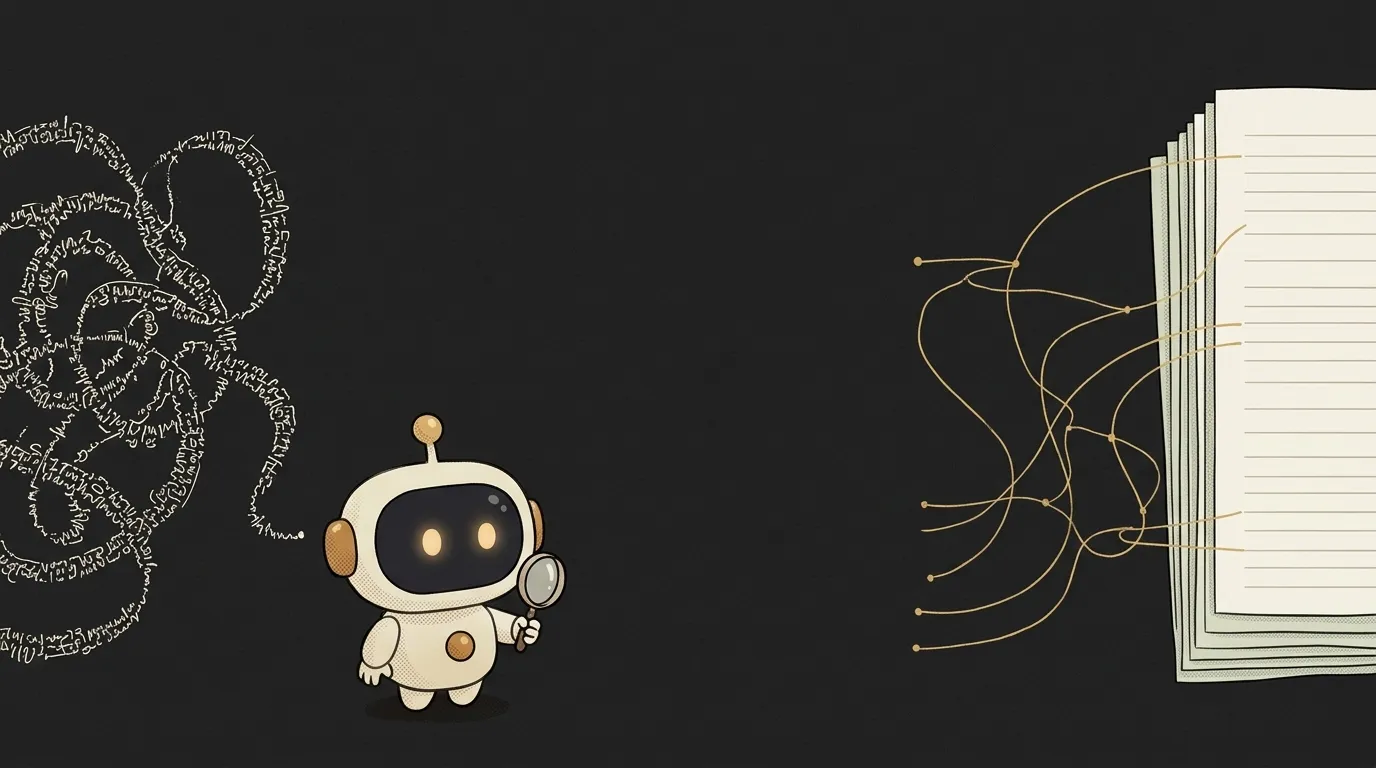
What is ARIA — and why pages that use it have more errors

Here's a strange number. Every year WebAIM tests the home pages of a million websites. In the 2026 report, ARIA showed up on 82.7% of pages. And pages with ARIA averaged 59.1 accessibility errors. Pages without it — 42.
A tool invented for accessibility tends to travel with extra barriers. WebAIM is honest about it: pages with ARIA are also more complex, so ARIA isn't necessarily the culprit. But the first rule of ARIA from the W3C sounds just as odd: don't use ARIA if plain HTML can do the job.
Let's figure out what this thing is — and why it's so easy to get wrong.
What is ARIA, in plain words
ARIA is a set of attributes that describe an element to software used by blind people. It stands for Accessible Rich Internet Applications. That software is called a screen reader: it reads the page out loud.
The attributes come in three kinds:
- role — what the element claims to be:
role="button",role="dialog"; - state — what's going on with it right now:
aria-expanded="true", the menu is open; - property — a label or a relationship:
aria-label="Close".
The W3C compares ARIA to CSS for assistive technology. CSS decides how an element looks. ARIA decides how it sounds.
How it works: it changes the sound, not the behavior
The browser takes the DOM — your page's tree — and builds a second tree next to it: the accessibility tree. That's what the screen reader reads. ARIA rewrites entries in that tree. And it does nothing else.
That's the main trap. Take this code:
<div role="button">Save</div>
The screen reader says "Save, button". The person presses Tab to reach it — and focus skips right past. They press Space — nothing. The role promised a button, but nobody wired up the keyboard.
A real <button> does all of this on its own. With an ARIA role, you have to write that work by hand. Forget it, and you get an element that sounds like a button and doesn't work like one.
The W3C's four rules of ARIA
The W3C document "Using ARIA" boils it down to four rules. They're worth knowing by heart:
- If a native HTML element exists, use it.
<button>instead of adivwith a role,<nav>instead ofdiv role="navigation". - Don't change native semantics unless you really have to. Don't turn a heading into a tab with
role. - Everything interactive with ARIA must work from the keyboard. For a button role — Enter and Space.
- Don't hide focusable things from the screen reader. Put
aria-hidden="true"on a button, and a keyboard user ends up focused on "nothing".
And the W3C ARIA Authoring Practices Guide opens with the line: "No ARIA is better than bad ARIA." A wrong role isn't just useless. It tells the person something untrue about the page.
Where ARIA is genuinely needed
Native HTML doesn't cover everything. Here are the spots where you can't do without ARIA:
aria-label— a label for a button with no text: an ×, a magnifying glass, three dots.aria-expanded— whether a menu or a collapsible section is open.aria-current="page"— which navigation item is the current one.role="status"— announce a message that appears without a reload: "Saved", "Copied".aria-hidden="true"— hide a decorative icon from the screen reader so it doesn't read its name.
Notice: all of these add to native elements. They don't replace them.
Why this matters if you code with AI
The same WebAIM report counted an average of 133 ARIA attributes per page. That's six times more than in 2019. Among the reasons for the growth, the authors name third-party frameworks and AI-assisted coding — vibe coding.
Models happily sprinkle role and aria-label "just in case". An example from the report: role="menu" appears on 5.7% of pages. And 22% of those menus create barriers. The menu role promises arrow-key navigation, and nobody built the arrow keys. What's more, ordinary site navigation doesn't need that role at all — the W3C builds it from buttons with aria-expanded.
So when reading AI-generated code, ask every ARIA attribute three questions:
- Is there a native tag that does the same thing? If so, swap it in and delete the attribute.
- Does the sound match the picture? The button says "Cancel" but has
aria-label="Close window"— a sighted screen reader user hears one thing and sees another. - Does it work without a mouse? Tab through it and press Enter and Space.
And add one line to your prompt: "use semantic HTML; add ARIA only where no native element exists, and explain every attribute." The extra ARIA usually disappears on its own.
Short story-lessons, an agent simulator and daily practice — in our mobile app. Free.
Does ARIA need anything special in React?
No. In JSX, aria-* attributes are written the same way, with a hyphen: aria-label, aria-expanded. The rules are the same too — native tags first. What React is and why you'd use it is covered in a separate article.
How is aria-hidden different from display: none?
display: none hides an element from everyone: from the screen and from the screen reader. aria-hidden="true" hides it only from the screen reader — it stays on screen. All the ways to hide things are compared in display: none vs visibility: hidden.
How do I check the ARIA on my site?
Turn on a built-in screen reader: VoiceOver on a Mac — Cmd+F5, Narrator on Windows — Ctrl+Win+Enter. Tab through the page and listen. Even faster: the Accessibility pane in Chrome DevTools shows the role and name each element ended up with.
Read next

What are stdout and stderr — and why errors don't land in your log file
What is an exit code — and why CI can be green while tests fail

What is a Web Worker — and why await doesn't stop your page from freezing

dependencies vs devDependencies — the difference, and why it breaks your deploy

What is Big O notation — and why your code flew on 100 rows and died on 100,000