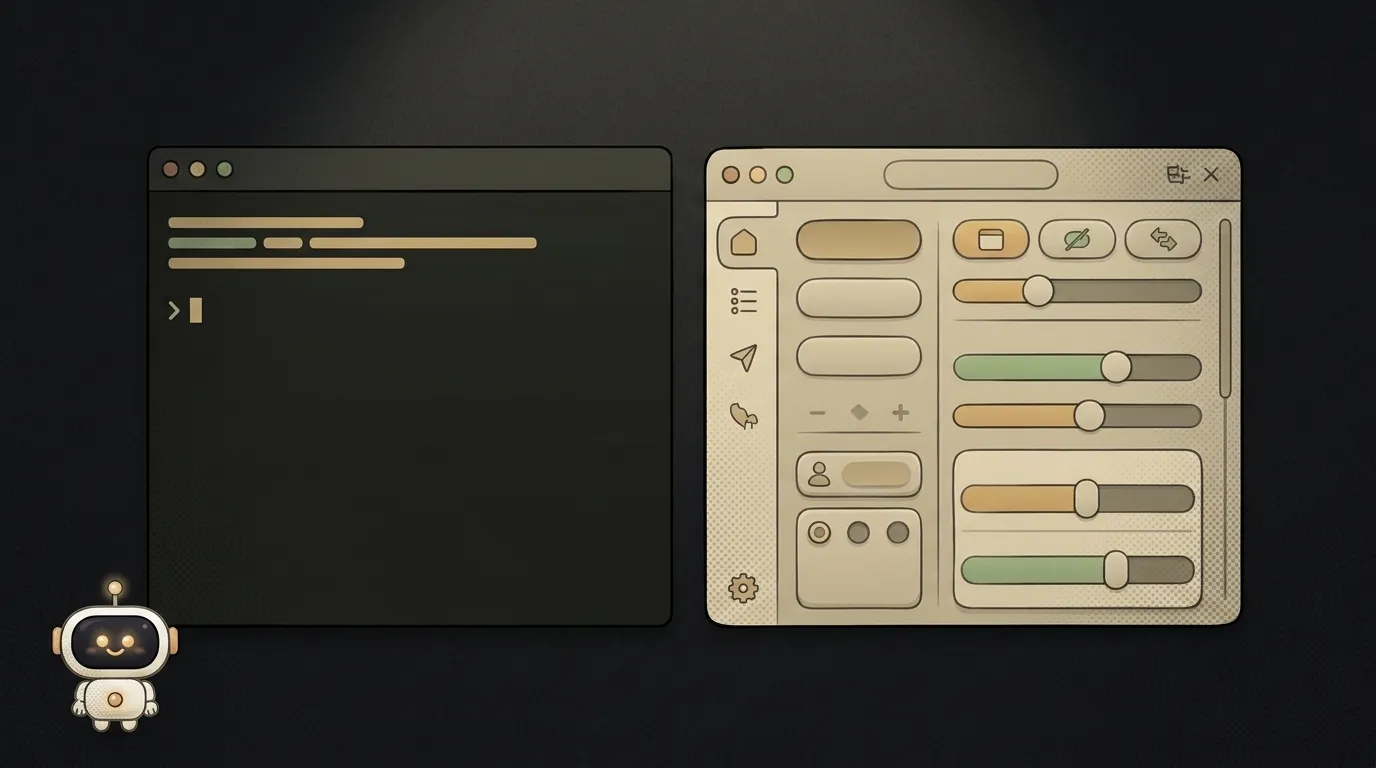
Cursor, Copilot, Windsurf — which AI editor should a beginner pick
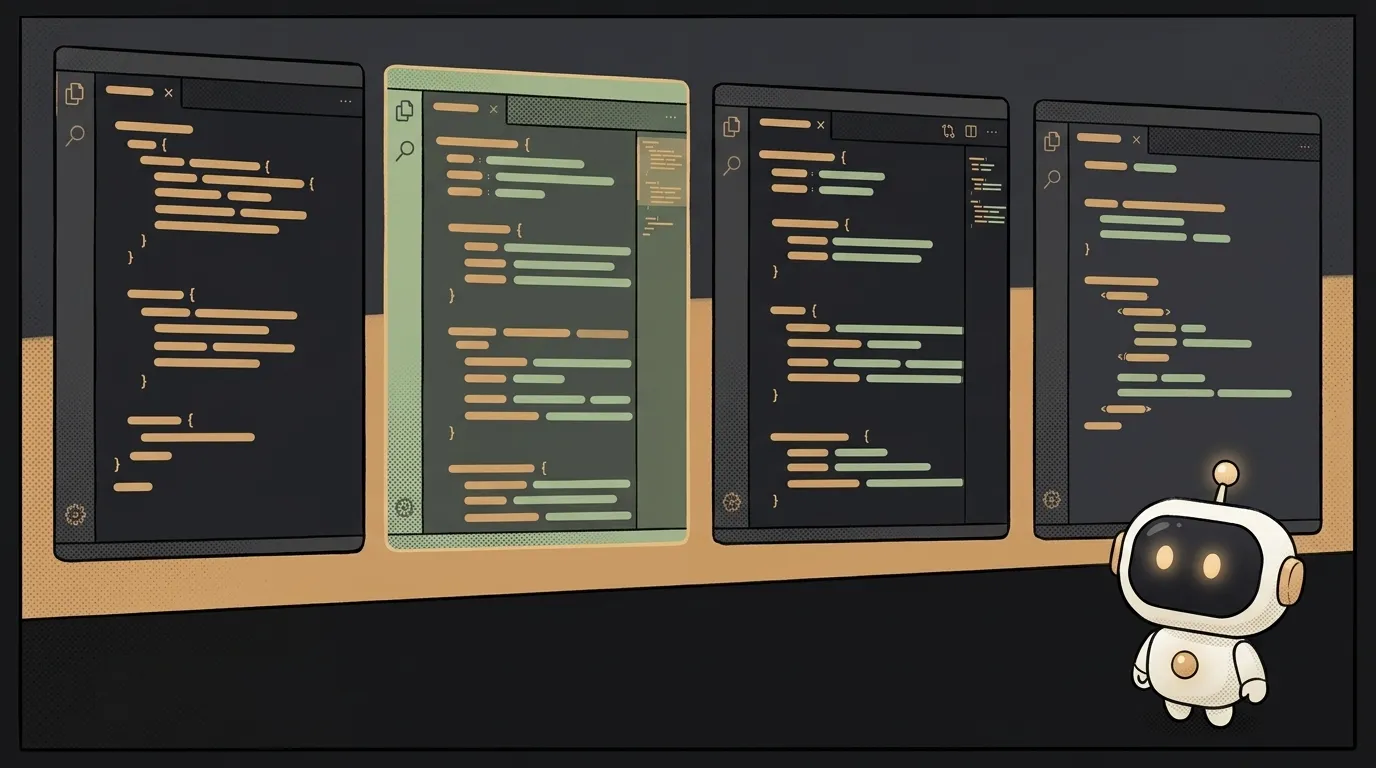
You google "Cursor or Copilot" and fall straight into an endless argument. One review praises a thing, the next one trashes it for the exact same thing. Here's the trick: for a beginner, that's not even the right question.
The right question isn't "which editor is best," it's "which style of working suits me." Because these tools aren't faster-or-slower versions of each other — they work in genuinely different ways. And once you see the three styles, the choice almost makes itself.
Style 1: smart autocomplete
You write the code yourself, line by line. The AI looks over your shoulder and suggests what comes next: the next line, the rest of a function. Like it? Hit Tab and the text appears. Don't? Keep typing your own.
It's like autocorrect on your phone, except smart and built for code. The key thing: you're driving, the AI is hinting. You see and approve every line yourself.
What it feels like in practice: you type the start of a line, a grey continuation appears next to it — hit Tab if it guessed right. The pace stays yours, you just type less.
GitHub Copilot made this style famous first. Who it suits: someone who wants to write the code with their own hands and understand every step, keeping the AI as an accelerator — not the driver.
Style 2: an agent that sees the whole project
This one's different. You don't dictate lines — you state a task in plain words. "Add a login screen." "Fix the bug with the date." The agent looks at the whole project itself, decides which files to touch, and works in loops: writes, checks, fixes — then shows you the result.
That's not a one-line hint anymore. It's a helper you hand a whole chunk of work to.
What it feels like in practice: you type a task into a box, wait a minute — and the agent shows you which files it created and changed. You review and accept, or send it back for another pass. It feels like you're not working alone.
Windsurf leans hard in this direction, and Cursor does plenty in this mode too. Who it suits: someone who wants to move fast and describe the outcome rather than type it out. With one caveat — more on that below.
Style 3: a chat helper on the side
The middle path. A little chat window next to your code. You ask: "what does this function do?", "how would you make this shorter?", "why is there an error here?". The AI answers, shows you an option — and whether to paste it is your call.
You still write most of the code yourself. The AI is like a smart friend next to you, there whenever you tap them on the shoulder. This chat exists almost everywhere: in Cursor, in Copilot, in Windsurf.
How to pick yours
Brands shift, prices jump, features come and go. These questions, though, stay put. Answer them honestly:
- Control or speed? Want to see every line — autocomplete and chat are your styles. Want to hand off a whole task — the agent is your style.
- Are you ready to check the AI's work? An agent is fast, but it sometimes wanders off and touches more than it should. If you can't read someone else's code yet — start with line-by-line: that way you're learning, not just accepting.
- What are you already on? If you're comfortable in your current editor, an autocomplete extension might be enough — no need to move house to a new one. Fewer habits to break.
- What about the free tier? All three give you a way to try without paying — some more generously than others. Limits change constantly, so check their site before you put money down.
Advice for the very first step
Don't pick "forever." Grab any of the three and build something small in one evening. After a couple of hours you'll feel your style better than after ten reviews.
And honestly: for a beginner, the gap between specific brands is far smaller than the gap between these three styles. Figure out which style is yours — and the right tool for it will sort itself out.
Short story-lessons, an agent simulator and daily practice — in our mobile app. Free.
Read next

Claude Code or Codex — and why price is the worst way to choose

Word blocklist vs AI moderation — what to filter user content with

ChatGPT subscription or the API — two different products, and here's which one you need

npm vs pnpm vs yarn — which package manager to pick as a beginner

OpenAI API vs OpenRouter — which one to plug into your project