Show it your screen and ask out loud — it sees what's open and walks you through it
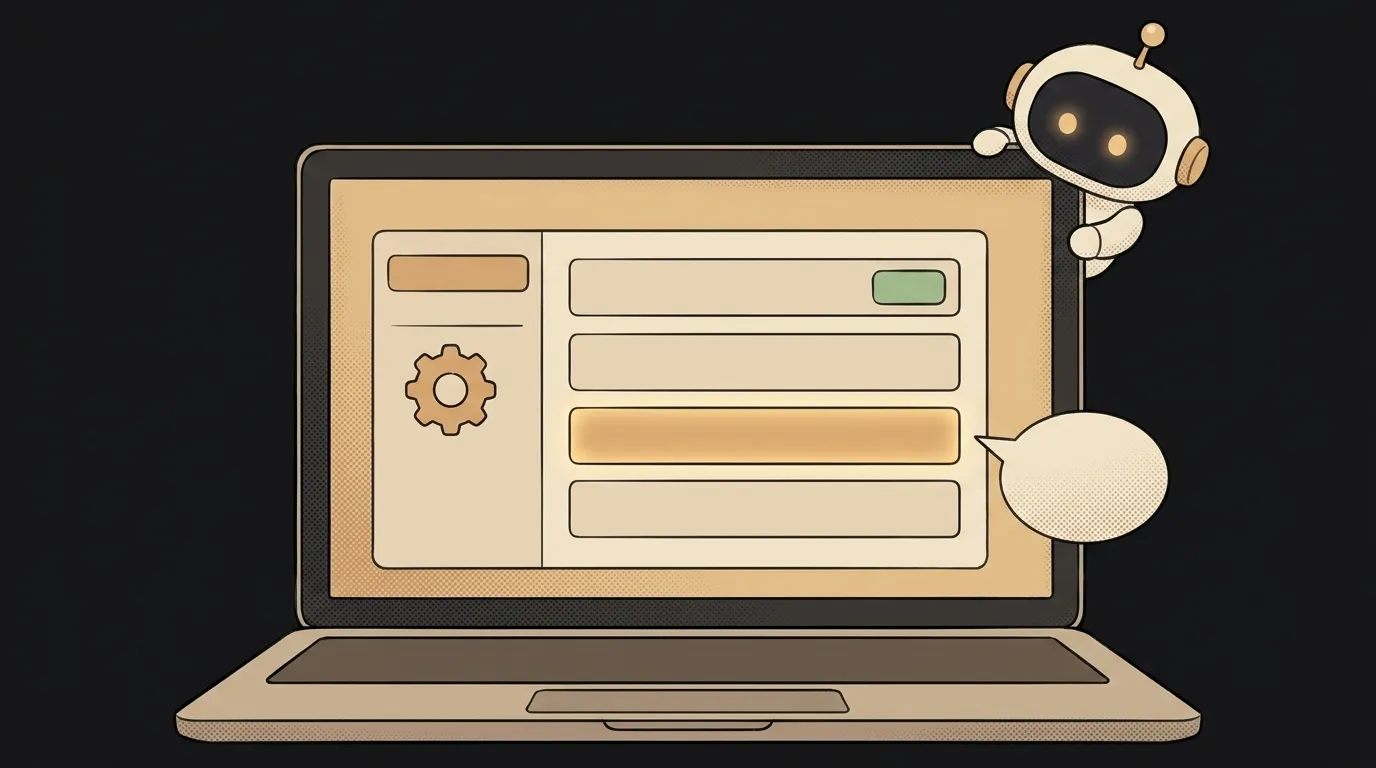
Here's the idea in one line: you're stuck in some program — can't find where in settings to turn on two-factor, or an Excel sheet is calculating the wrong thing. You share your screen with the app and ask out loud, "where do I turn this on?" And it looks at your actual screen and guides you by voice: "see the gear at the bottom left? click it… now the 'Security' tab…" Like a friend looking over your shoulder.
And here's what's new. Until now, to get AI help with your screen you took a screenshot, sent it, and explained in words what was where. It never saw your screen live. Now the Gemini Live API takes a screen stream the same way it takes a camera stream — and talks in real time while you click. Can't find the button? You cut in: "I don't have that tab," and it adapts. That's the new thing this project rides on.
Why this one
"Where do I turn this on" is the most common pain with any program. A screenshot in a chat means a pause, a description in words, and a game of "guess what's on my screen." Here the model sees exactly what you see and talks without pulling you out of the task. It especially helps with the person you usually explain things to over the phone: a parent, a grandparent, a new hire. Set them up with this and the "where do I tap?" calls drop.
And there's less magic here than it seems. The app is a pipe: it takes the screen and mic stream, runs it to the model, returns a voice. All the hard part lives inside one ready-made tool.
What you'll learn
- The screen as an input to the model. You used to send text or a photo. Now it's a live stream of what's on screen. That's a new kind of input, and you'll wire it up by hand.
- An answer pinned to what's actually open. The model points not "in general," but at a specific button on your screen. Less making things up — it doesn't invent, it looks.
- A step-by-step dialog. A good tutor doesn't dump ten items at once. You'll teach the model to give one step and wait — and see why that's clearer.
A ready starter prompt
Don't ask the agent to "make a screen helper" — it'll guess how to hold the stream and how much to dump at once. Give it the scenario, the character, and the limits:
Make an app that looks at the screen and helps.A strong prompt leaves no room to guess: the model is named, the screen and audio streams are spelled out, and the hints come one step at a time about a specific element. The first result lands closer to what you wanted.
What it looks like
You share the settings screen and ask "where do I turn on two-factor?" — you hear: "gear at the bottom left… now 'Security'… that toggle there." You open Excel, a formula won't compute — it looks and says there's a stray space in the cell. You fill out a government form and don't get a field — it tells you what goes in. Not text you still have to match against your own screen, but a voice already looking at it.
A weekend plan
- Grab the Live API sample in Google AI Studio — it already has "try it live."
- Wire screen sharing and the mic into it so both streams reach the model.
- Set the system role from the prompt above: one step at a time, about a specific element, interruptible.
- Test on three real sticking points — phone settings, a spreadsheet formula, any form in the browser.
One evening for the skeleton, the second for the character — so it leads step by step instead of dumping everything at once.
Short story-lessons, an agent simulator and daily practice — in our mobile app. Free.
Read next
47 vacation clips — and an agent cuts them into a video on the beat
Build a “send as-is” button — a model that hands you the email, not advice about it
A song where you change one chord — instead of spinning the generator again
The clip is already rolling — and you call out what happens next

A web page that watches your camera live — 30 frames a second, offline, no server