AI design tools for non-designers — 7 that actually save you
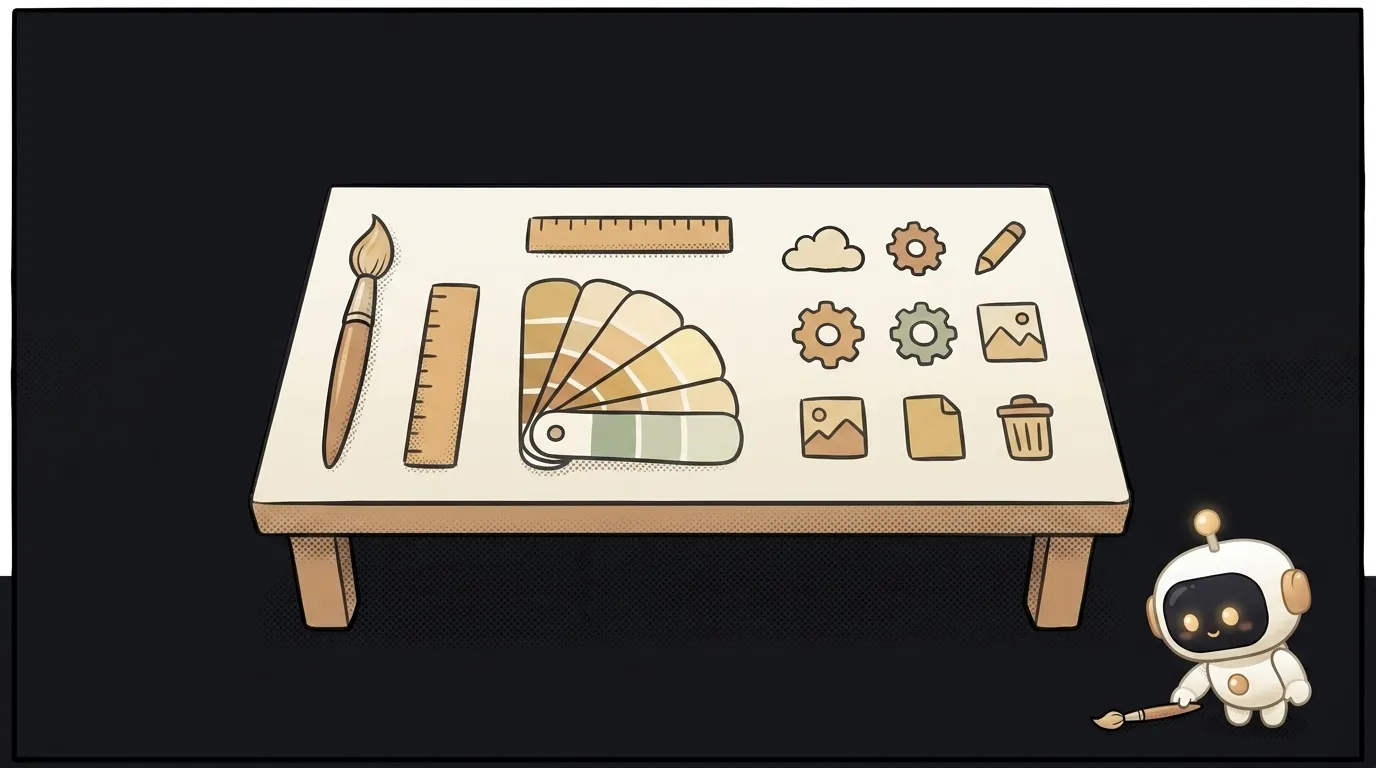
Good news for the solo builder: design is no longer the wall a project crashes into. Bad news — there's no single magic "make it pretty" button. There are seven narrow tools, each covering its own slice: one draws screens, another icons, a third the palette. The skill isn't finding "the best" — it's knowing which one for which job.
Here's a roundup where every entry earns its place: what it is, when to reach for it, and what it catches on. No "top 50," just what people actually use when there's no designer around.
1. v0 (Vercel) — app screens as ready code
Describe a screen in words — get a working interface in React and Tailwind that you can drop straight into your project. Not a mockup image, but live code.
When to reach for it: you need real UI for a web app, not just "how it might look." What it catches on: the output is code — you'll need to be a little friendly with it and have a stack to drop it into.
2. Lovable — a whole app from one prompt
A step beyond v0: Lovable generates not a screen but a whole app — interface plus backend and database. Describe the idea, get a working prototype with login and data.
When to reach for it: you want to go from idea to a clickable app in an evening, without assembling piece by piece. What it catches on: the stack is imposed, you get less control; as the project grows, it can feel cramped.
3. Uizard — a fast editable mockup
A prompt — or even a screenshot of someone's app — turns into an editable mockup. Not code, but a prototype image that's handy to tweak and show around.
When to reach for it: you need to quickly sketch the screen structure and click through a prototype before writing code. What it catches on: the result is a mockup, not an app; you can't deploy it to production — a next step is needed.
4. Figma Make / Figma AI — design inside Figma
If you want to learn the "grown-up" way, Figma is the industry standard, and its AI drafts a first screen and helps with layout right on the canvas. After that you edit by hand.
When to reach for it: you're ready to invest a bit in a tool that pays off long-term and that real designers speak. What it catches on: you need to learn Figma itself a little — it's not a "one button" thing.
5. Canva Magic Studio — everything around the app
A store icon, social covers, banners, an investor deck, a simple logo. AI-powered Canva covers the project's marketing wrapping — the stuff that isn't UI but that you can't launch without.
When to reach for it: you need not the interface but the images around the product — posts, covers, slides. What it catches on: it's not a tool for designing the app itself — you can't build screens with it.
6. Recraft — icons and logos in one style
The main pain with AI images is they're all different. Recraft can hold a consistent style across a set of icons and deliver them as SVG (vector) — meaning crisp at any size.
When to reach for it: you need a set of icons or a logo that look like one family, not a random pile. What it catches on: to control the style precisely you'll have to dig in — consistency doesn't come on the first try.
7. Realtime Colors / Khroma — color on a live mockup
The palette is what most often gives a "non-designer" away. Realtime Colors shows colors right on a real site mockup, and Khroma learns your taste and suggests combinations. You see not swatches but how it lives on a page.
When to reach for it: the project looks "homemade" and you suspect it's the colors and fonts. What it catches on: the tool suggests, but the taste and final call are still yours.
How to build a stack from these
Don't grab everything at once. For a typical side project, three are enough:
- Screens — v0 or Lovable (depending on whether you want code or a whole app).
- Icons and images — Recraft for icons, Canva for covers and social.
- Color and fonts — Realtime Colors so nothing looks homemade.
That's enough to bring a project to a decent look without getting stuck. Once the screens are ready, the next step is to deploy the app so people finally see it. And the base vibe-coder toolkit, not just design, we put together separately.
FAQ
Can I get by with one tool?
If the project is simple — yes, sometimes v0 or Lovable is enough: they give both screens and an acceptable style out of the box. But the moment you need branded icons or a tidy palette, one UI generator doesn't cover it — you'll top up with narrow tools.
Are these tools free?
Most have a free tier that's enough to start and for a side project, and a paid one — for volume, unlimited export, or team work. Start free: you'll learn which tool is really yours before paying.
Will this replace a real designer?
For a side project and an MVP — largely yes: getting to "decent and clear" is now a solo job. For a strong brand, a complex product, and refined UX, a live designer still wins. These tools remove the blocker, not the profession.
Short story-lessons, an agent simulator and daily practice — in our mobile app. Free.
Read next
ChatGPT subscription or the API — two different products, and here's which one you need
npm vs pnpm vs yarn — which package manager to pick as a beginner
OpenAI API vs OpenRouter — which one to plug into your project
Ollama vs LM Studio — which to pick for running AI locally
Gemini or Claude — which model to pick for code and beyond (2026)