Useful MCP servers: 6 that earn their place in your context

Intuition says: the more MCP servers you connect, the smarter your agent gets. Install twenty and you get a super-assistant.
In practice the opposite happens, and here's why.
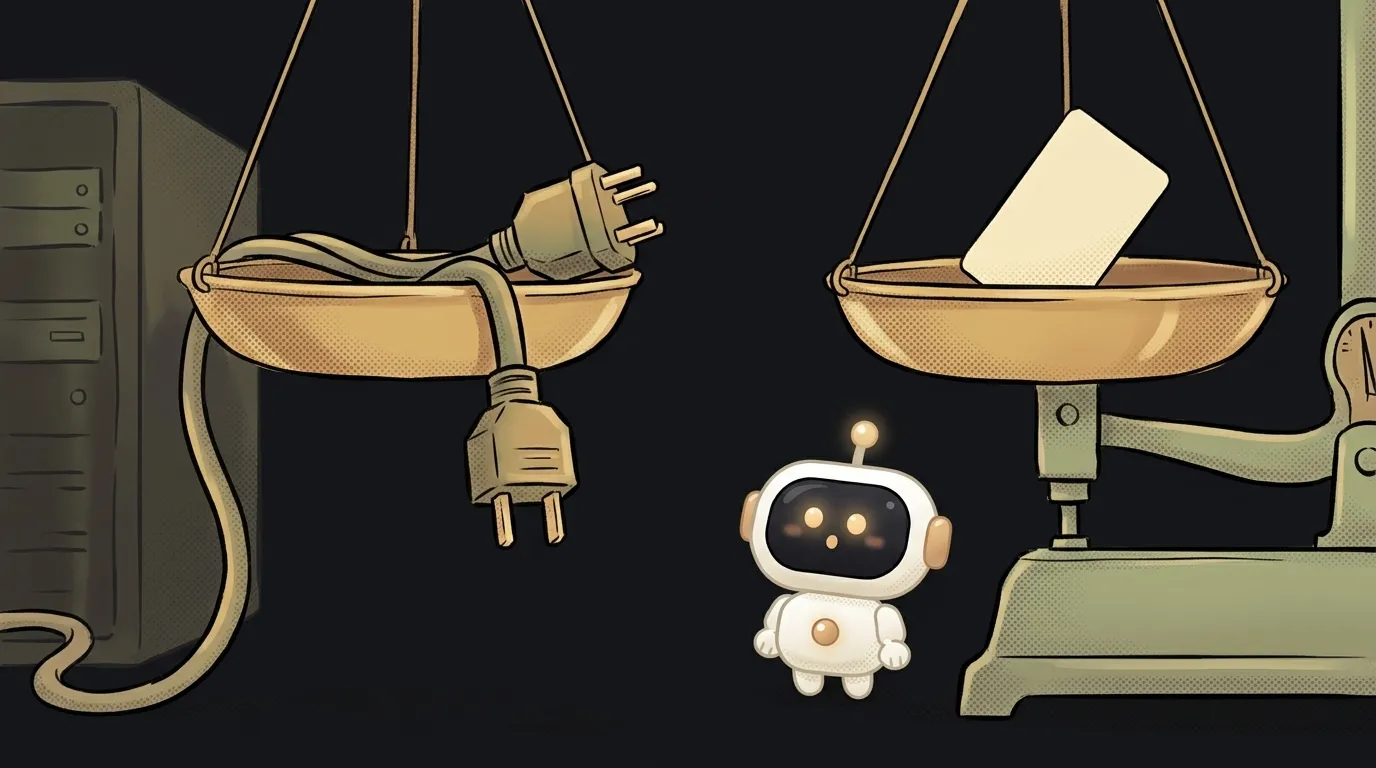
Tool definitions don't appear on demand — they sit in the context from the start of the conversation, on every request, even when you don't touch those tools today. Atlassian measured it: one large MCP server can eat 10,000–17,000+ tokens per request just for its tool descriptions. Their internal proxy compressor cuts that by 70–97% — the fact that such a tool had to be written tells you the size of the problem.
The arithmetic follows. Five heavy servers, and half your context window is gone before you say a word. On top of that, the model has to pick the right tool out of a hundred similar ones — and misfires more often.
So a good MCP server list is a short one. Here are six that earn their place, and the honest price of each.
1. Filesystem — access to files outside the project
The official reference server: read and write files in folders you explicitly allow.
Turn it on when: the agent works with material outside the repo — notes, exports, mockups, a neighbouring project.
The catch: you set the access boundaries yourself at launch. Point it at the drive root and the agent sees everything, including the .env of other projects. Name specific folders.
2. Git — the project's history, not just the current file
Also official: read history, search commits, look at diffs.
Turn it on when: the agent needs to understand why the code is like this, not only what it looks like now. "When did this break," "what did this commit do" — those are questions to history.
The catch: if your agent already has a terminal, it will just run git log — which is cheaper in tokens. This server matters where there's no shell.
3. GitHub MCP — issues and pull requests
GitHub's own official server: issues, pull requests, code search, discussions.
Turn it on when: the work revolves around PRs — "address the comments in this review," "write up an issue for this bug," "find where else this function is used."
The catch: it's huge in tool count and therefore the most expensive in context. It ships toolsets — enable only the ones you need instead of everything.
4. Playwright MCP — a browser the agent reads as text
Microsoft's server: the agent opens a page and works through the accessibility tree instead of screenshots. Click, fill, verify — no images, no pixel guessing.
Turn it on when: you need to check that your site actually works: fill a form, walk a flow, catch an error on a live page.
The catch: an honest warning from its own authors — for coding agents the CLI flavour is usually more token-efficient, because it doesn't drag large page trees into context. MCP wins where you need a long session with persistent browser state.
5. Chrome DevTools MCP — debugging instead of guessing
From the Chrome DevTools team: the agent looks at the console, the network requests, the performance of a live page.
Turn it on when: "why is this a blank screen," "why is this request failing," "why does it take five seconds." The difference is huge: the agent reads the real console error instead of inventing hypotheses from the code.
The catch: it needs a running browser and a URL where the problem reproduces. Useless for purely server-side bugs.
6. Context7 — current docs instead of invented methods
Pulls up-to-date library documentation straight into context.
Turn it on when: always, when writing code against external libraries. The model remembers an API as it was at training time — and confidently calls a method that was renamed six months ago.
The catch: it doesn't replace reading the docs yourself on tricky points. But it closes the single most common class of AI-code bugs — calling something that no longer exists.
What's not on this list — and why
Search for "top MCP servers" and half the roundups will recommend PostgreSQL, Slack, Puppeteer, Sentry or SQLite from the protocol's own authors. The problem: those reference servers are archived — some moved to vendors and the community, some were simply retired.
And the key thing about that official repository: it states outright that the servers there are educational examples demonstrating protocol features, not production-ready solutions. The living catalogue of what's actually maintained is the MCP Registry.
Hence the rule before installing anything: check the last commit date and who maintains it. For a protocol not yet two years old, "popular" and "alive" are different properties.
How many servers should stay enabled?
As many as the current task needs — usually three to five. Building frontend: browser and docs. Chasing a production bug: DevTools and logs. Switch the rest off rather than leaving them hanging.
Is it safe to install an MCP server off the internet?
Treat it as a dependency with your agent's privileges: it sees what the agent sees, and it can feed text into the model. Text the model reads is potential prompt injection. Install what known teams maintain, and don't grant a server access wider than the job.
Is an MCP server the same as tool use?
Almost: tool use is the model's ability to call tools at all, while MCP is the standard those tools plug into. One is the mechanism, the other is the socket.
The AI Architect 2027 course: step by step from computer basics to your own app and first customers. 543 short lessons on your phone.
Read next

What is headless mode for an AI agent — and why it silently skips steps

What is a hook in an AI agent — the rule the model can't ignore

What is a slash command in an AI agent — and why it's just a saved prompt

What is an Agent Skill — and why it costs almost nothing

What is a subagent — and why it saves context, not time