Why Git shows a merge conflict — and how to clear it
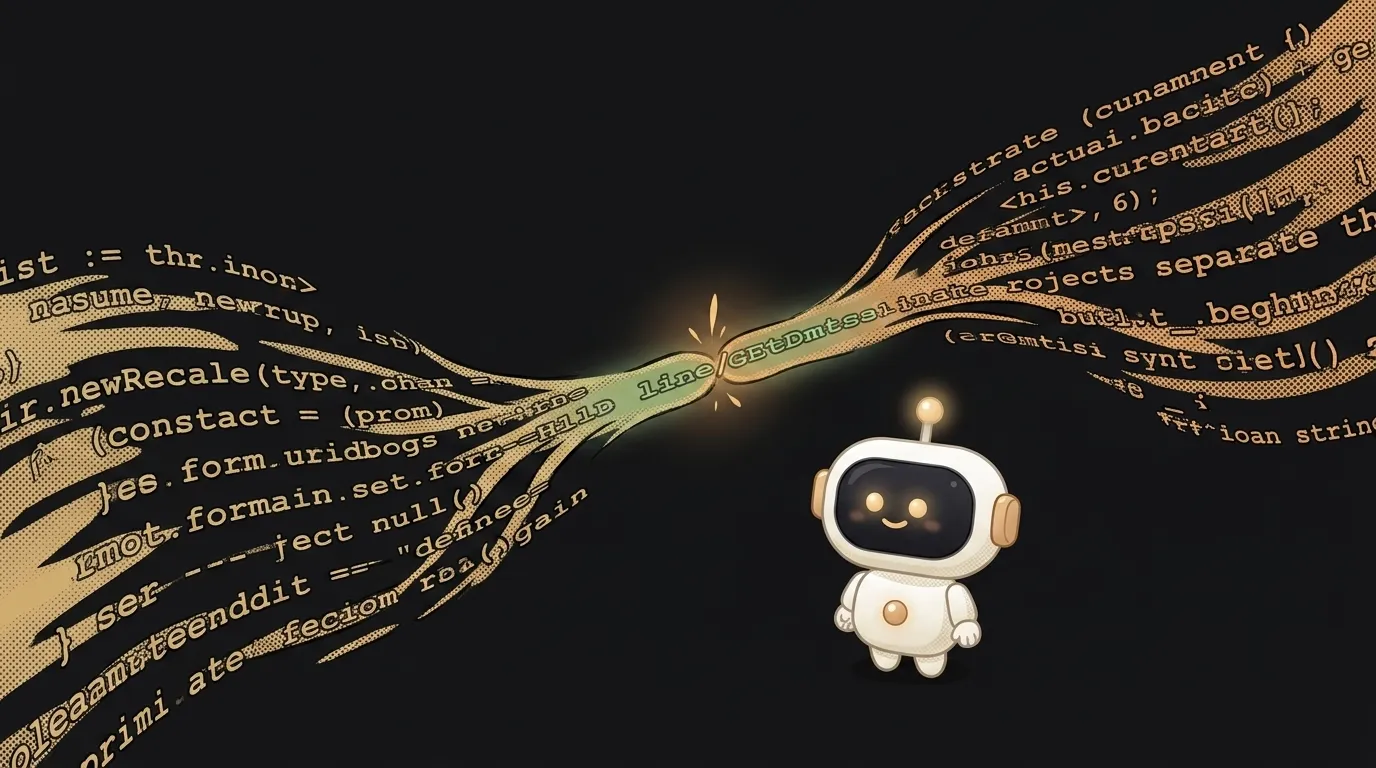
You merge branches or run git pull, and the terminal spits out CONFLICT (content): Merge conflict in app.js, freezing the merge halfway. First reaction: "I broke everything." No. A merge conflict isn't an error or a breakage. It's Git honestly saying: "two changes are fighting over one spot, and I don't want to decide for you." Let's look at why it happens and how to calmly sort it out.
The symptom: what you actually see
Git stops the merge and marks the problem files. Inside such a file, markers appear:
<<<<<<< HEAD
your version of the line
=======
the version from the other branch
>>>>>>> feature-branch
Between <<<<<<< and ======= is your version; between ======= and >>>>>>> is theirs. Git didn't pick, because both changed the same spot. There are usually three reasons this happened.
Cause 1: both branches edited the same lines
The most common case. On your branch you changed line 10, and on main someone (or you earlier) changed that same line 10 differently. When merging, Git sees two different versions of one line and doesn't know which is right.
How to check: run git status — it shows files marked both modified. Those are the ones holding the conflict markers.
Cause 2: a file was deleted in one branch, changed in another
A tricky one. In one branch a file was deleted, in another it was edited. Git doesn't know which matters more: keeping your edits or honoring the deletion.
How to check: in git status you'll see wording like deleted by them or deleted by us. Here the conflict isn't about lines but about the fate of the whole file — you decide whether to keep it or delete it.
Cause 3: pull on top of uncommitted edits
You edited a file, didn't commit, and ran git pull — and someone else's changes to the same file arrived. Git tries to lay one over the other and hits a conflict.
How to check: think back on whether you committed before the pull. The habit of "commit first, then pull" removes half of these. By the way, if it's the reverse — your push gets rejected — that's a separate story.
How to resolve a conflict, step by step
The mechanics are the same for all three causes:
- Open the file, find the markers
<<<<<<<,=======,>>>>>>>. - Decide how the line should look: keep your version, theirs, or blend both.
- Delete the markers themselves — all three lines with
<,=,>. This is what people forget most, and the code then breaks from the garbage left in the file. - Save the file, then
git add <file>— that tells Git "this conflict is settled." - When all files are settled, run
git committo finish the merge.
That's it. The merge is done, the history is intact.
FAQ: can I cancel the merge and think it over?
Yes, and it's often the smart move. git merge --abort rolls everything back to the state before the merge, as if you never started. No rush: abort, work it out calmly, try again. Handy commands are in the beginner cheat sheet.
FAQ: how do I hit conflicts less often?
Three habits: commit more often in small chunks; pull main into your branch regularly so you don't drift too far apart; and keep one task per branch instead of editing half the project at once. Conflicts won't vanish entirely — they're a normal part of the work — but they'll become rare and small.
Short story-lessons, an agent simulator and daily practice — in our mobile app. Free.
Read next
Why you get NaN in JavaScript — 3 causes and how to find where it came from
How to convert a string to a number in JavaScript — without tripping on a comma
Why my loop never stops — and the tab freezes solid
Why my array is empty — and why there's no error
Why your AI agent edits the wrong file — three causes and how to check each